









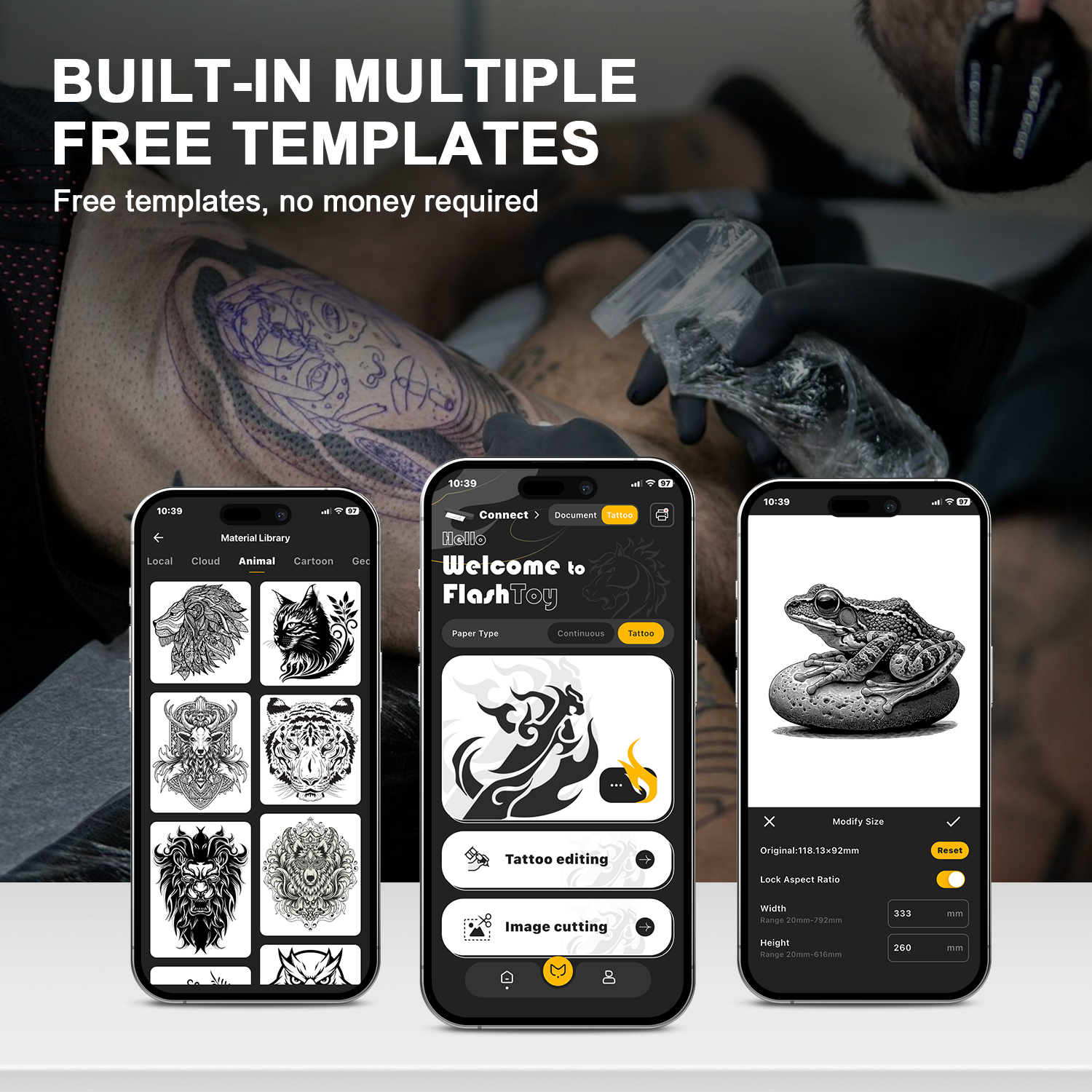
ST80 Thermal Tattoo Stencil Printer, 203dpi HD Wireless A4 Printer with Free Transfer Paper - Compatible with Phone & PC
価格:
$51.74
/Pc
払い戻し:

シェア:
売れ筋商品




Product Overview
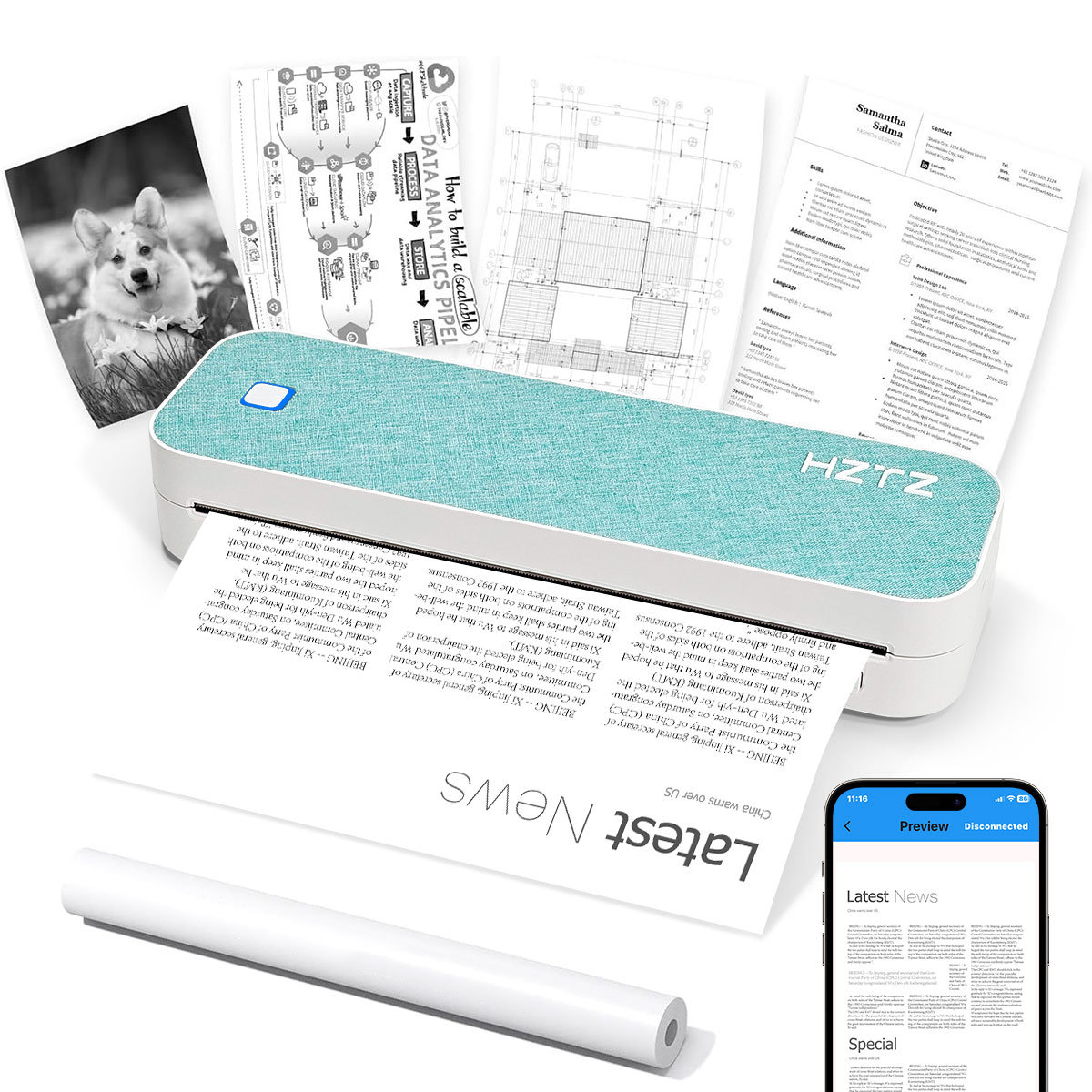
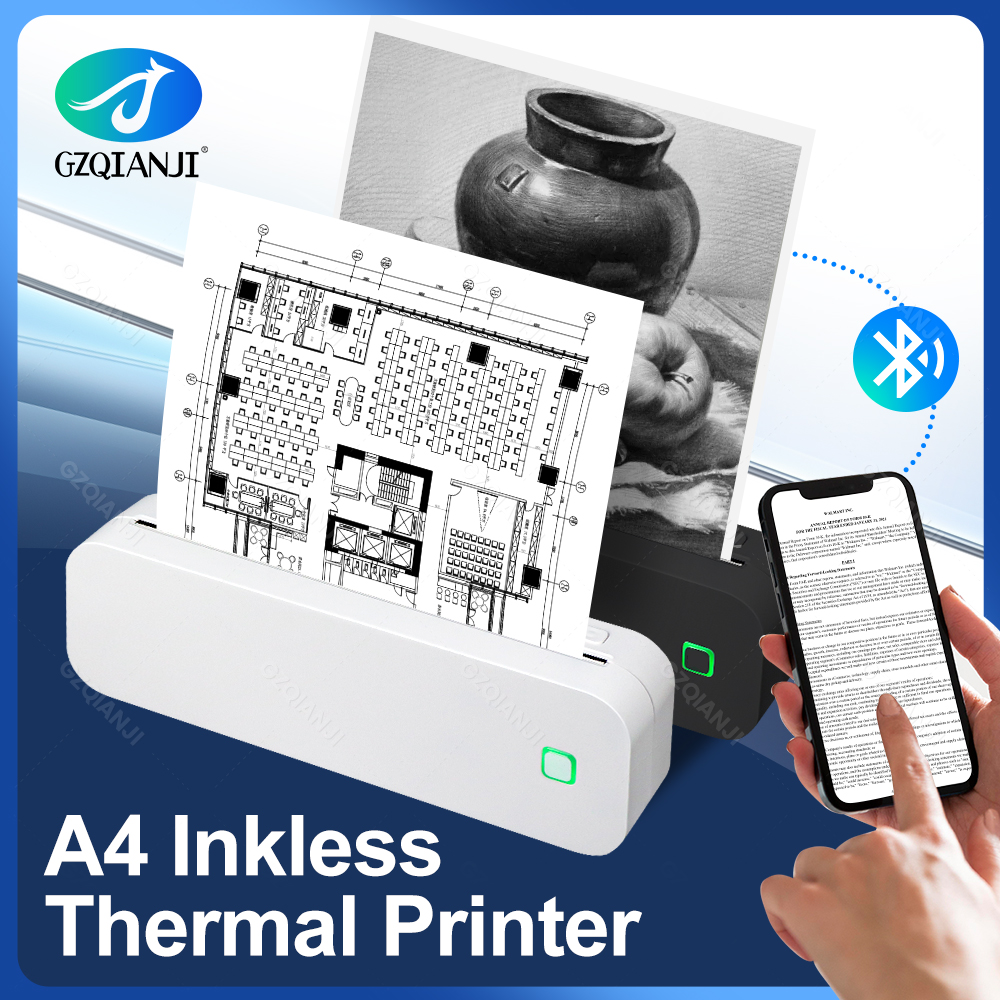
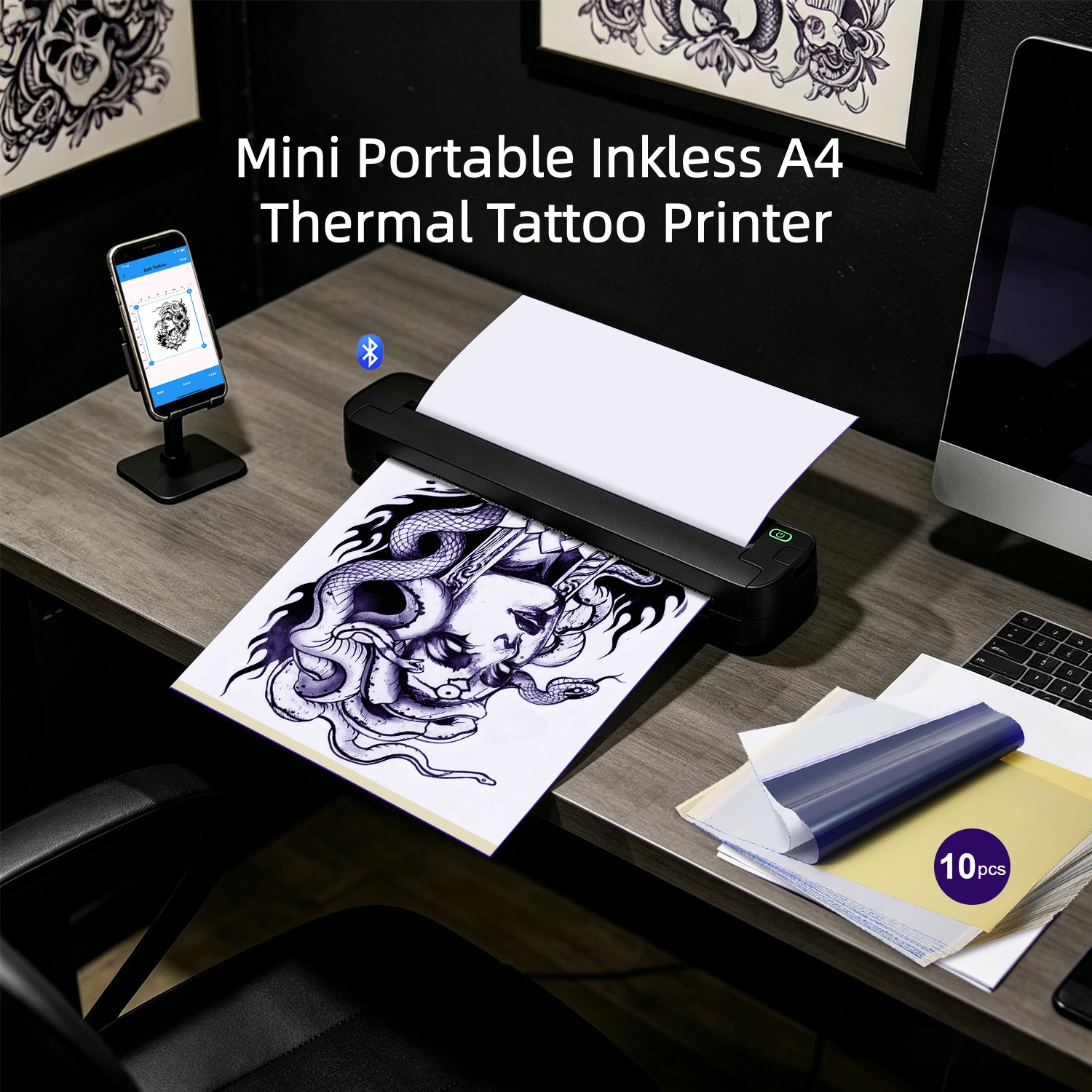
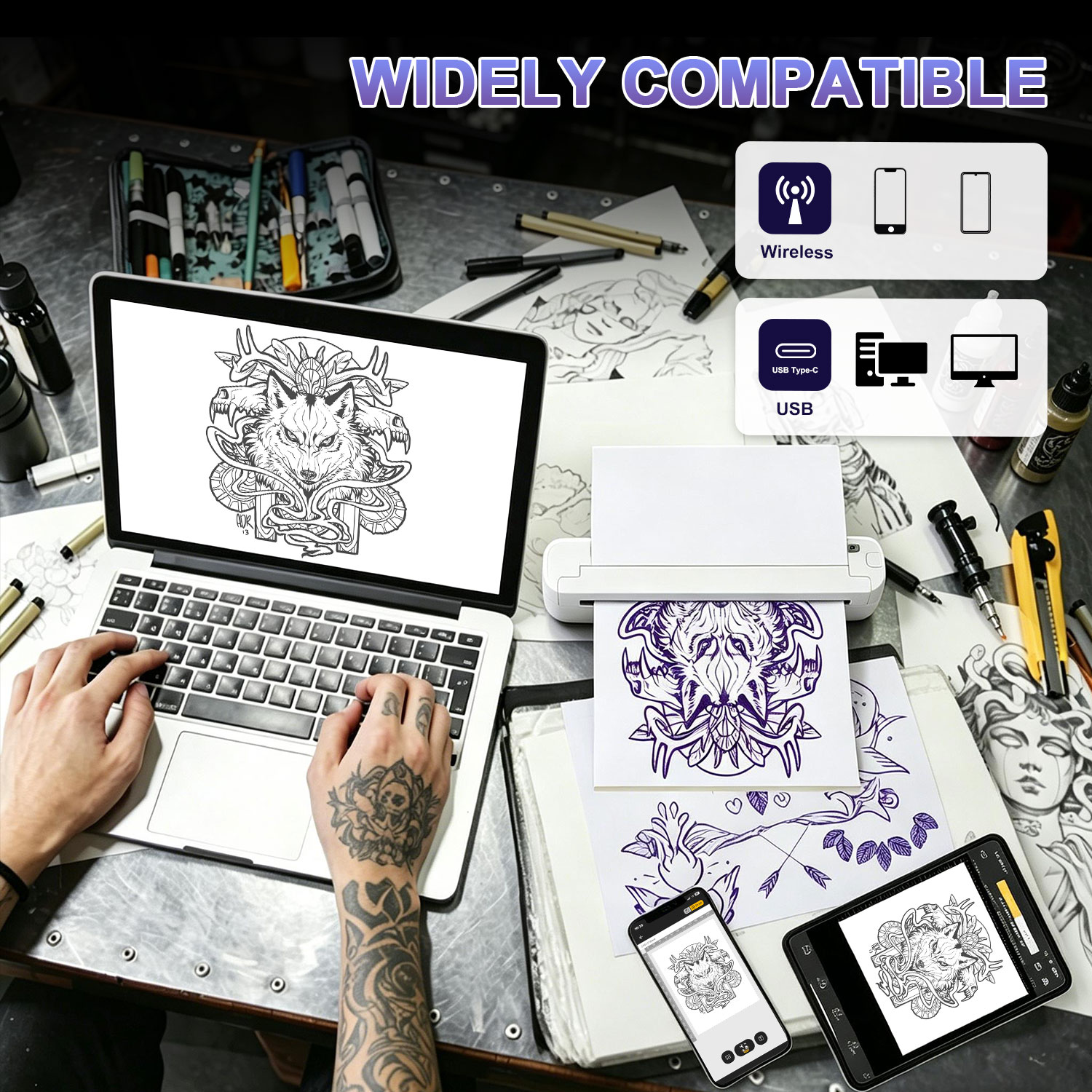
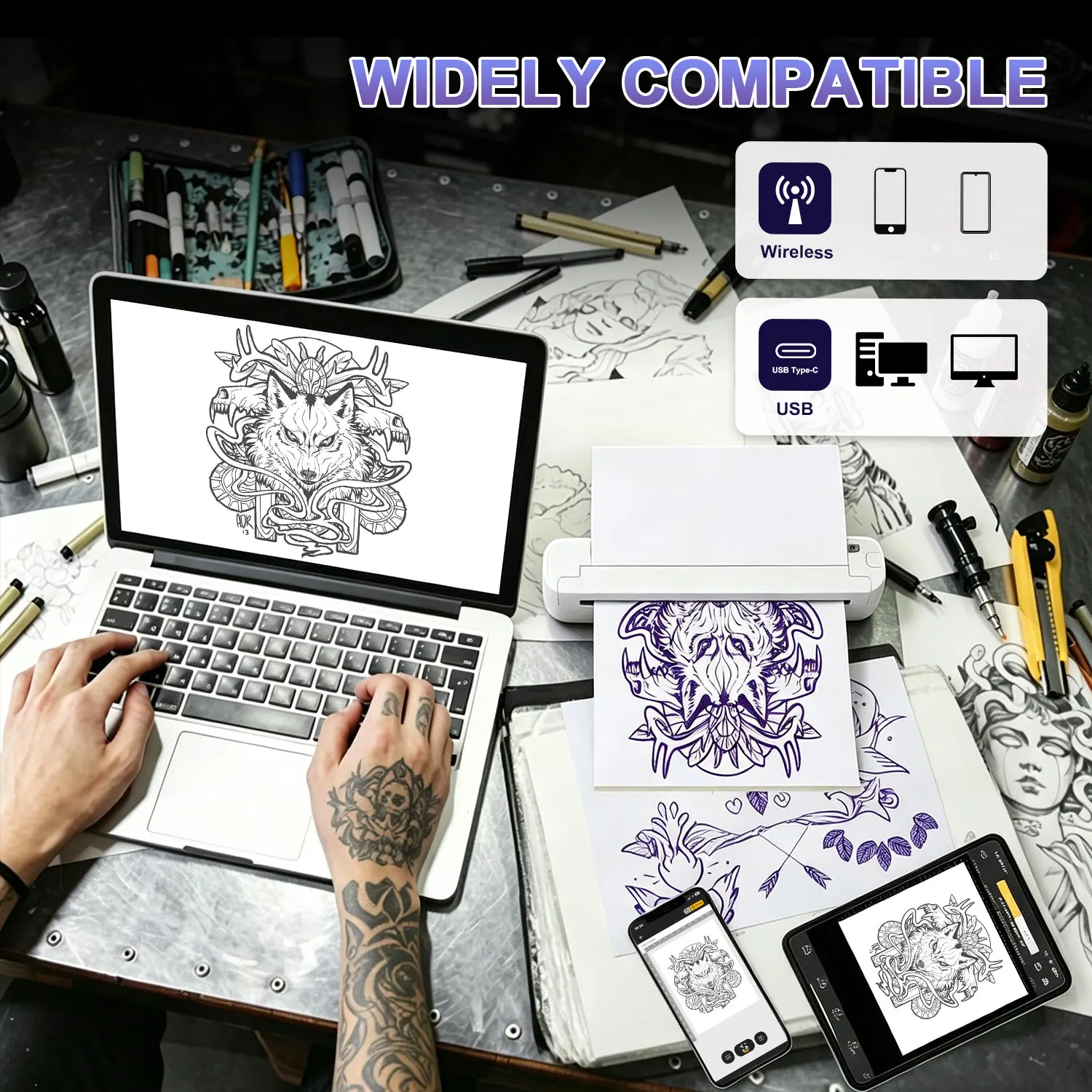
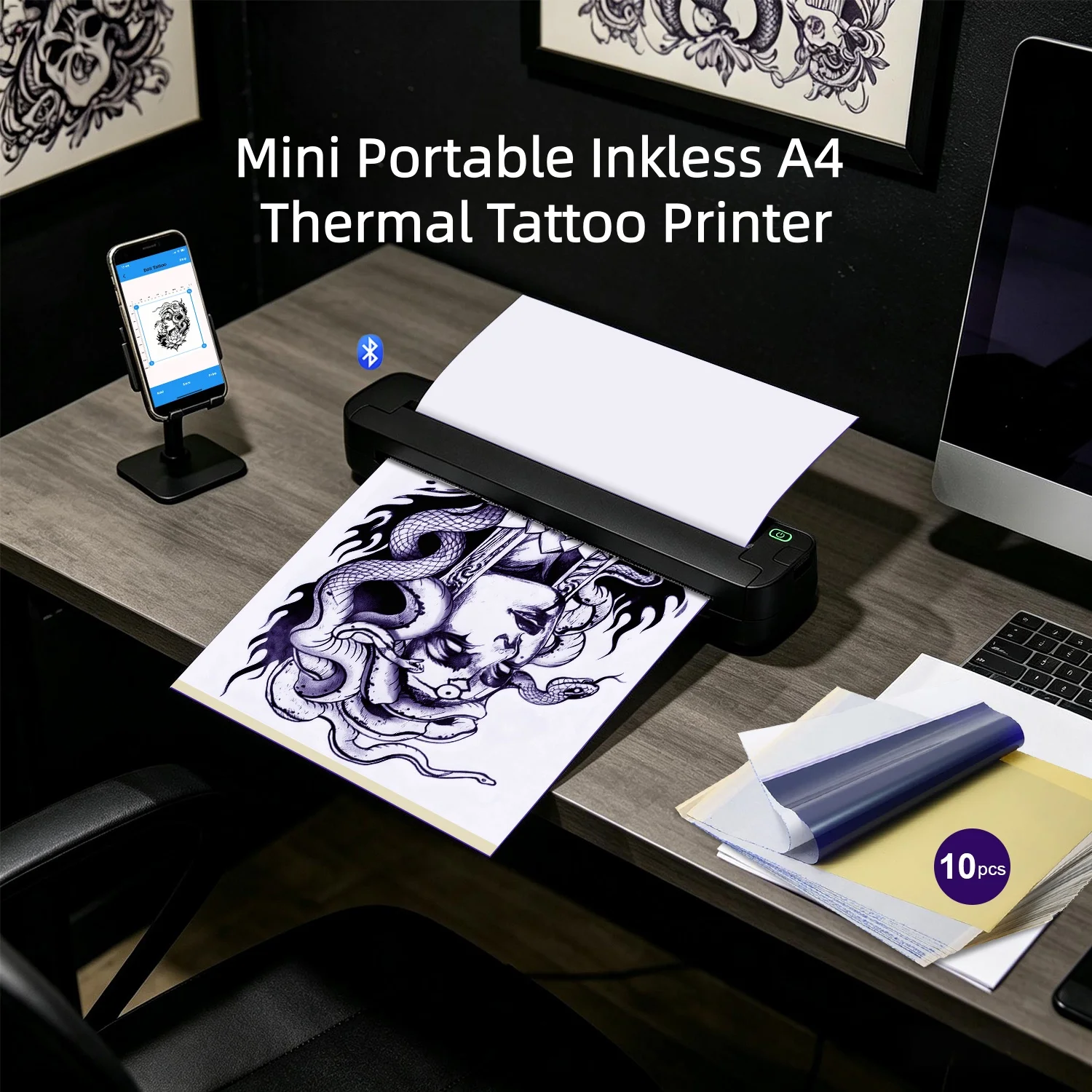
This is a portable thermal printer with dual USB and Bluetooth connection. It works with Android, iOS and Windows systems. The built-in 7.4V 1500mAh rechargeable battery supports long-time mobile use.
Main Specifications
Printing method: Direct thermal printing
Resolution: 203dpi
Maximum print width: 216mm
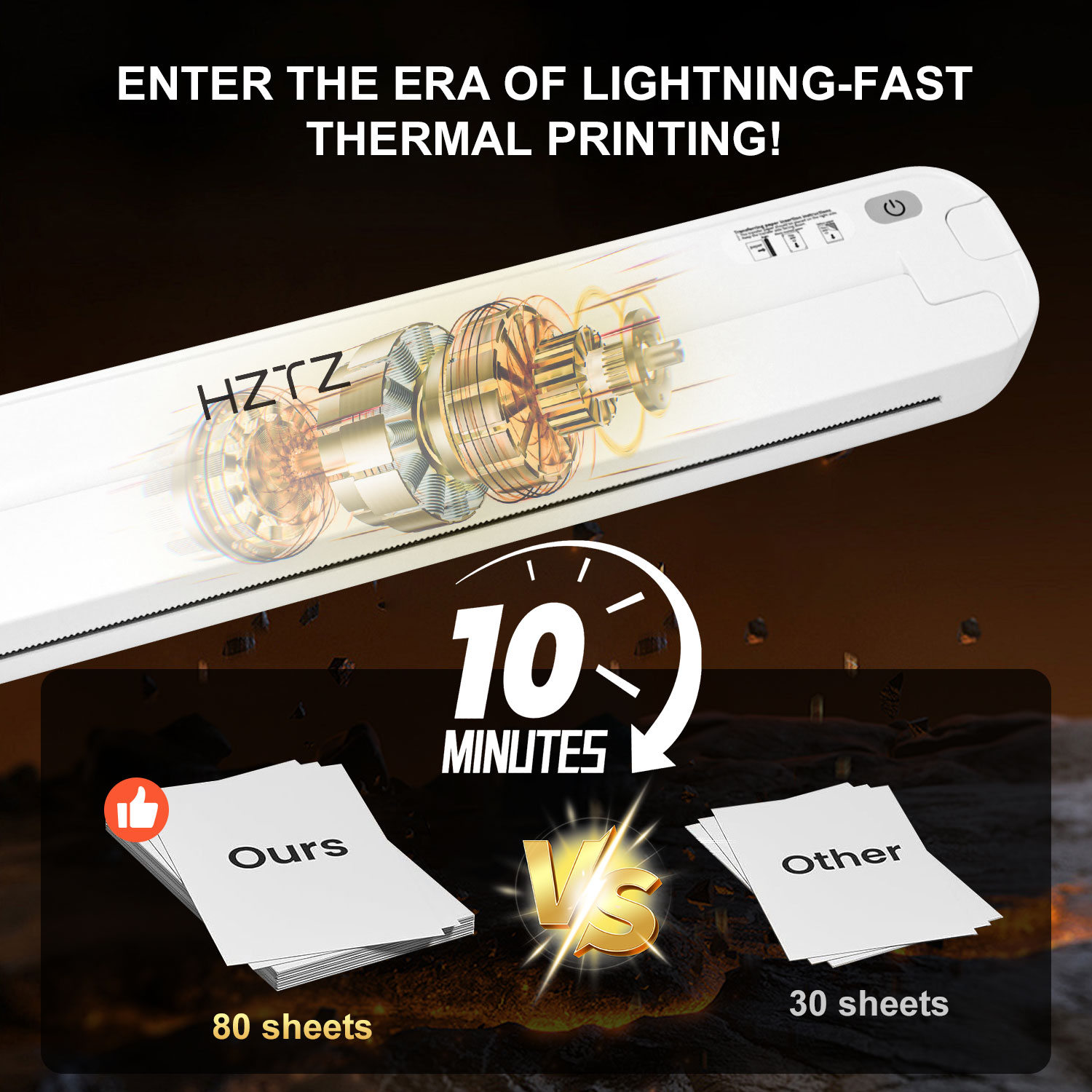
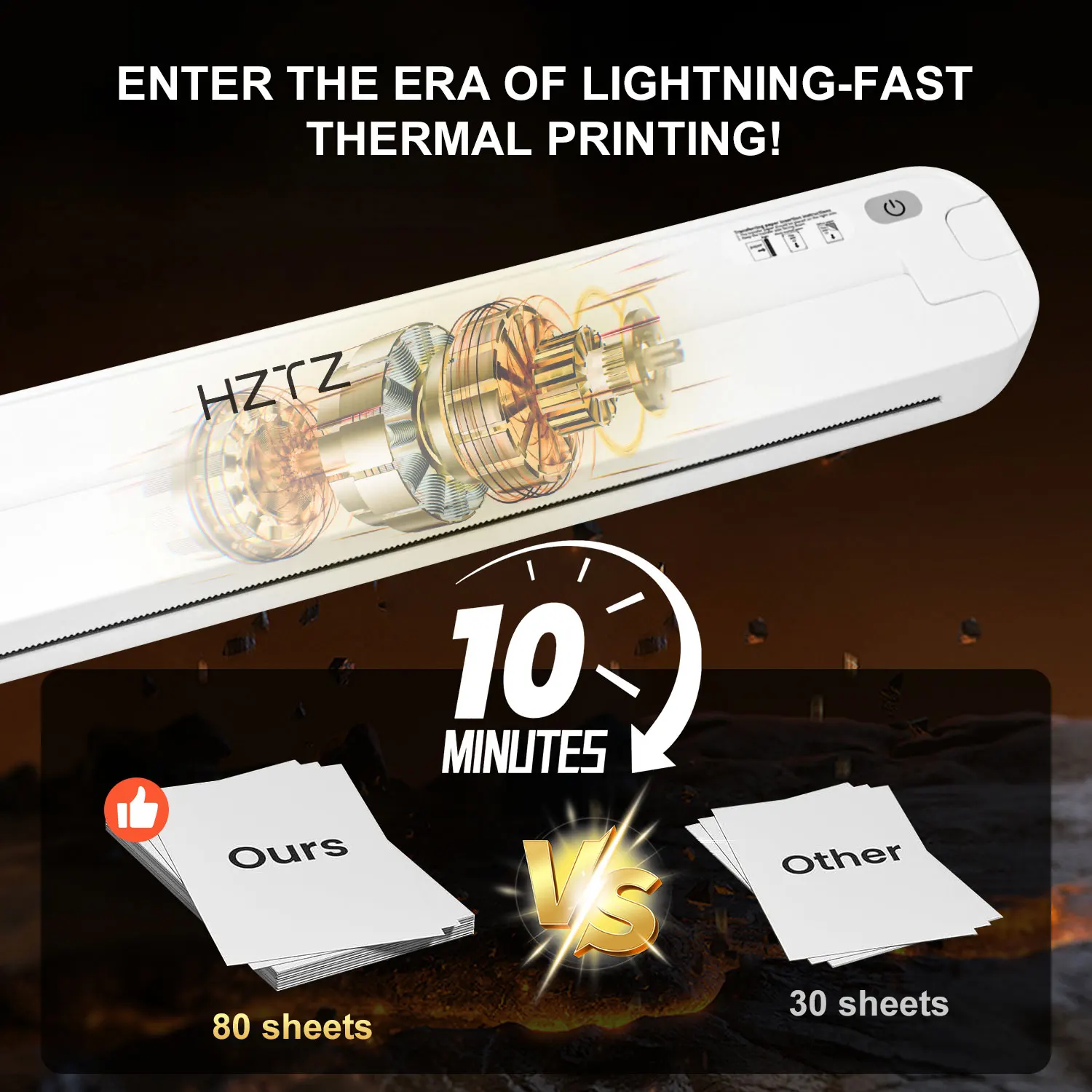
Maximum printing speed: 10mm/s
Maximum printing length: 400mm
Print head service life: 50KM
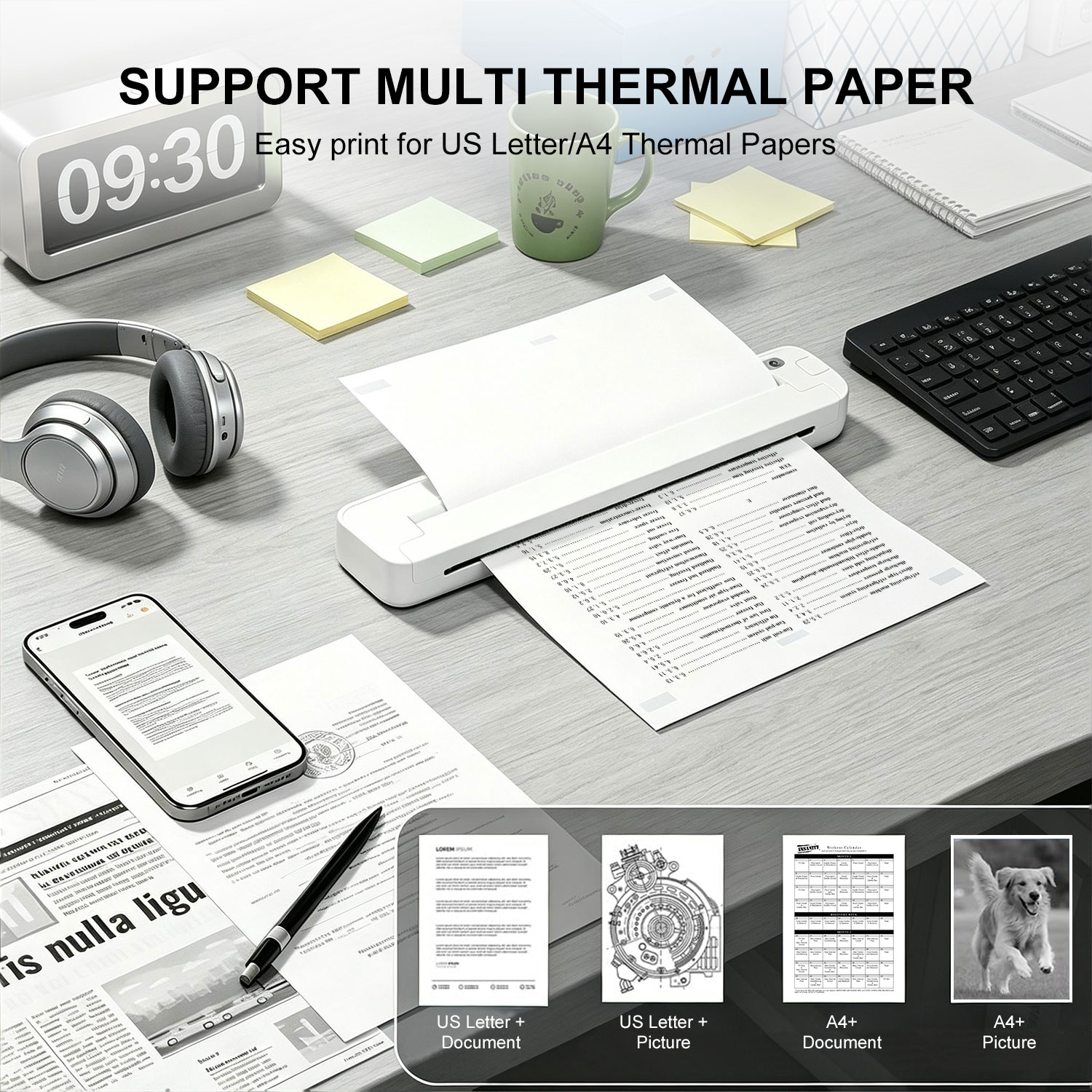
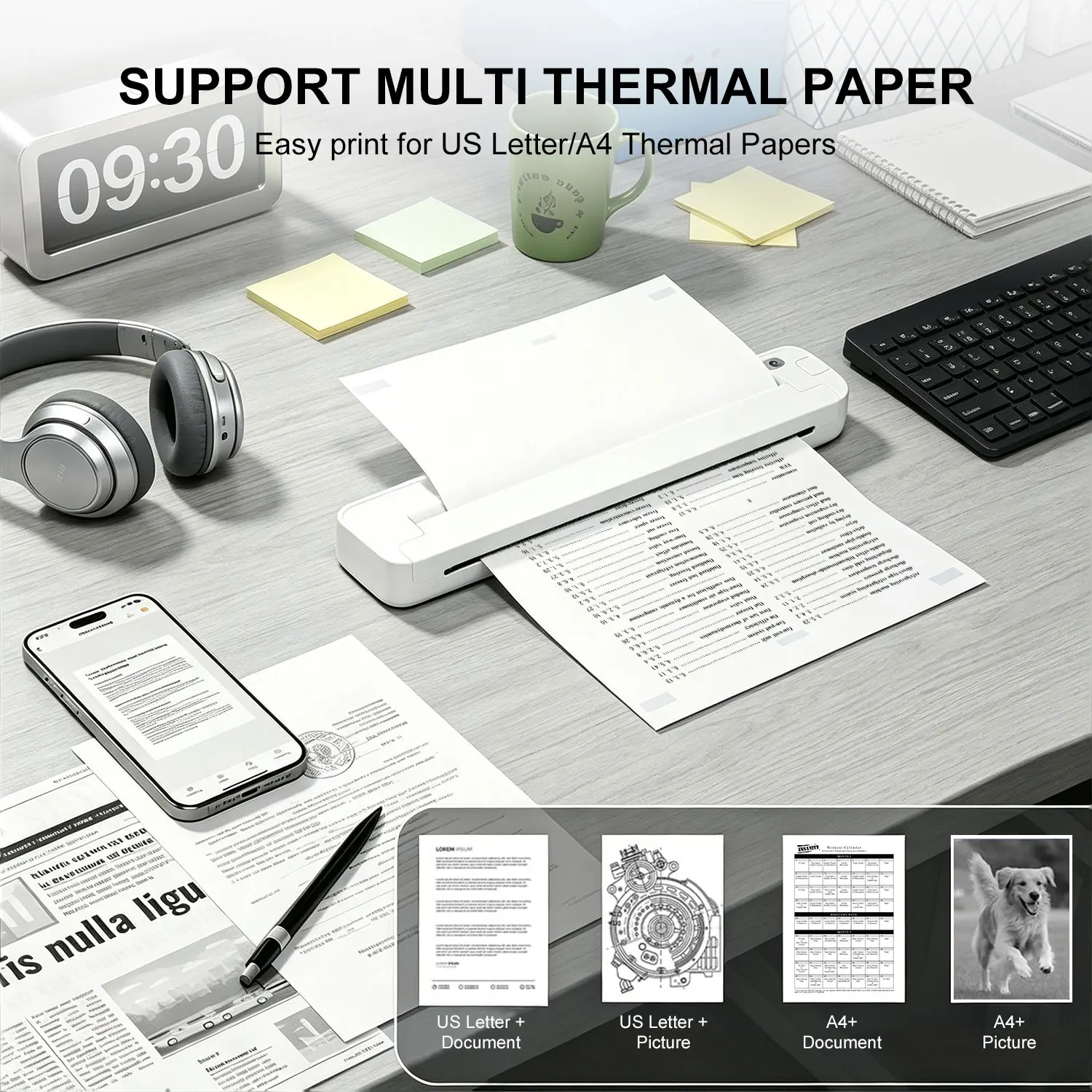
Supported paper: Folded thermal paper, tattoo transfer paper, maximum paper width 216mm
Power input: 5V 2A
Full charging time: 4 hours
Working environment: 0℃ to 45℃, humidity 10% to 90% (non-condensing)
Storage environment: -20℃ to 60℃, humidity 5% to 95% (non-condensing)
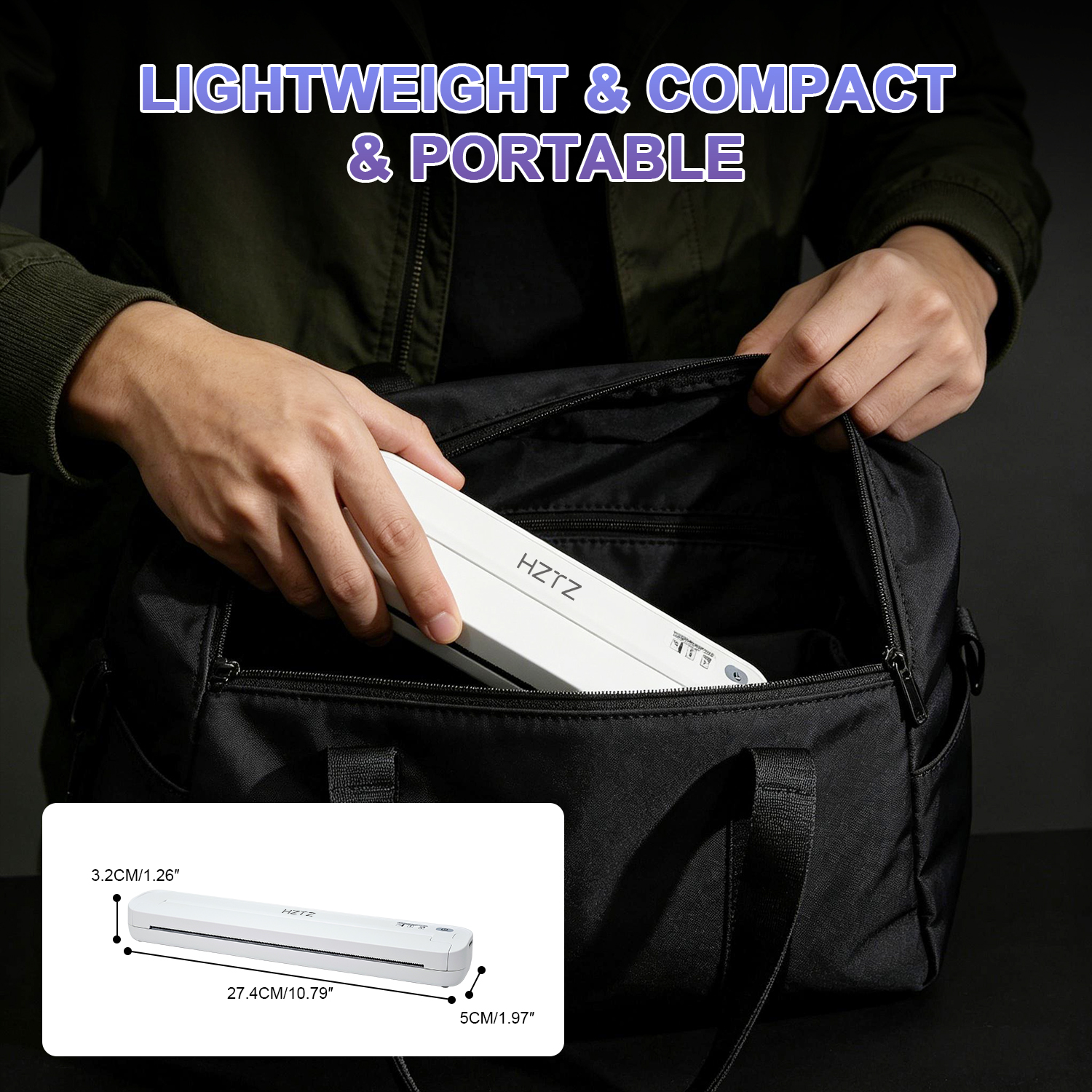
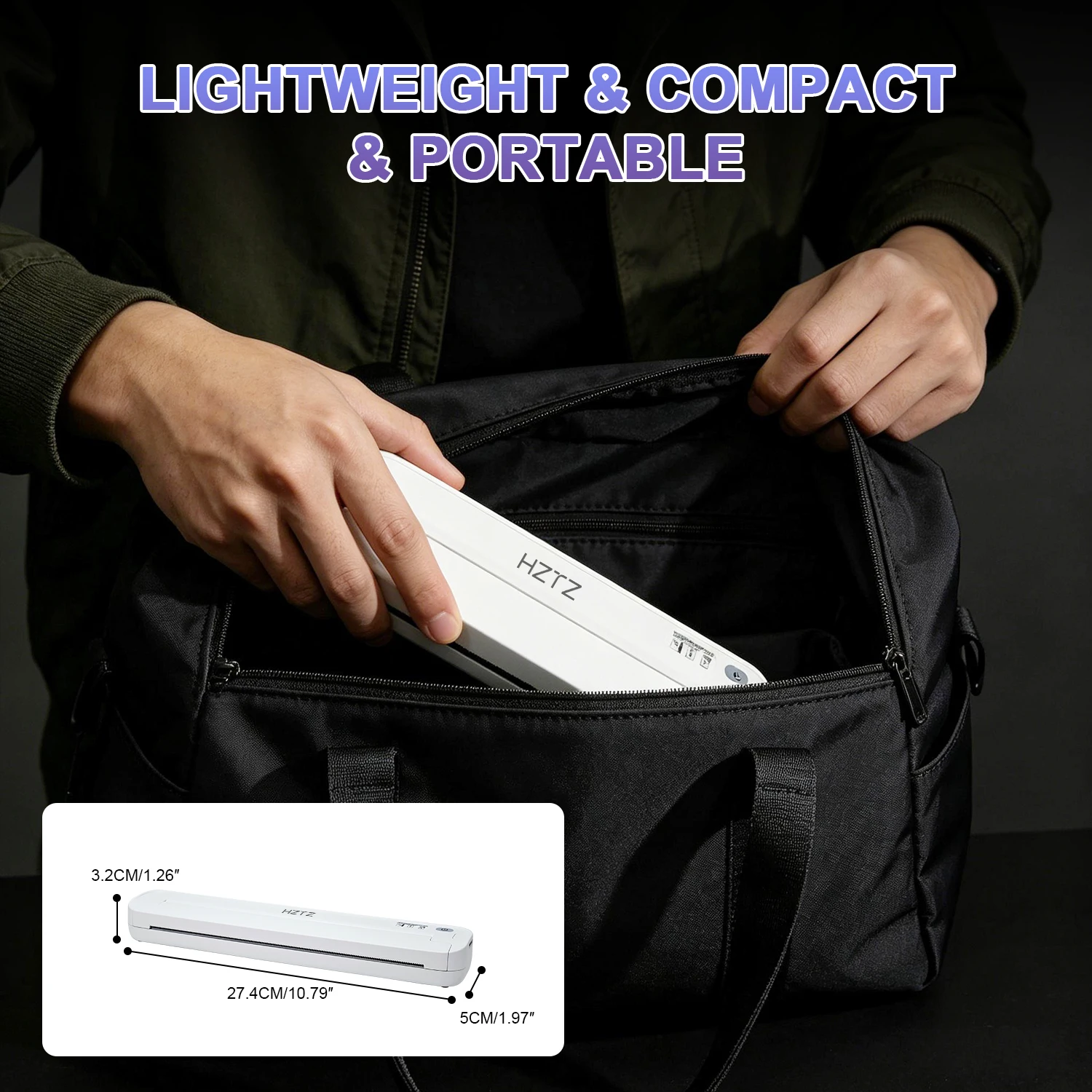
Product size: 2745032mm
Net weight: 455g
Product Components
Function button, cover opening switch, paper inlet, paper outlet, Type-C port and paper limiter.
Button & Indicator Instructions
Long press the function button for 3 seconds to turn the printer on or off. Double click the button to print self-test page for device status check.
Blue light stays on means Bluetooth is connected successfully.
Green light stays on means the printer works normally or is fully charged.
Green light flashes slowly means the printer is charging but not fully charged.
Red light stays on means out of paper, overheating or low battery.
Red light flashes slowly means the printer is powered off and being charged.
Safety Warnings
Only use standard 5V 2A power adapter for charging. Do not use unmatched power supplies.
Do not disassemble, drop or squeeze the printer. Keep the device away from water and liquid to prevent damage.
Do not use or store the printer beyond the specified temperature and humidity range.
This device complies with FCC rules. Any unauthorized modification will make you lose the right to use this product.
Please follow local rules to dispose of waste electronic products, do not throw it into ordinary household garbage.
Paper Installation Steps
Slide the cover opening switch to open the paper compartment.
Remove the transparent protective film from transfer paper before loading.
Put folded paper or tattoo transfer paper into the paper inlet. Adjust paper position with the limiter for better printing effect.
Pull out a small section of paper from the outlet, then close the cover tightly. The printer will feed paper automatically after correct installation.
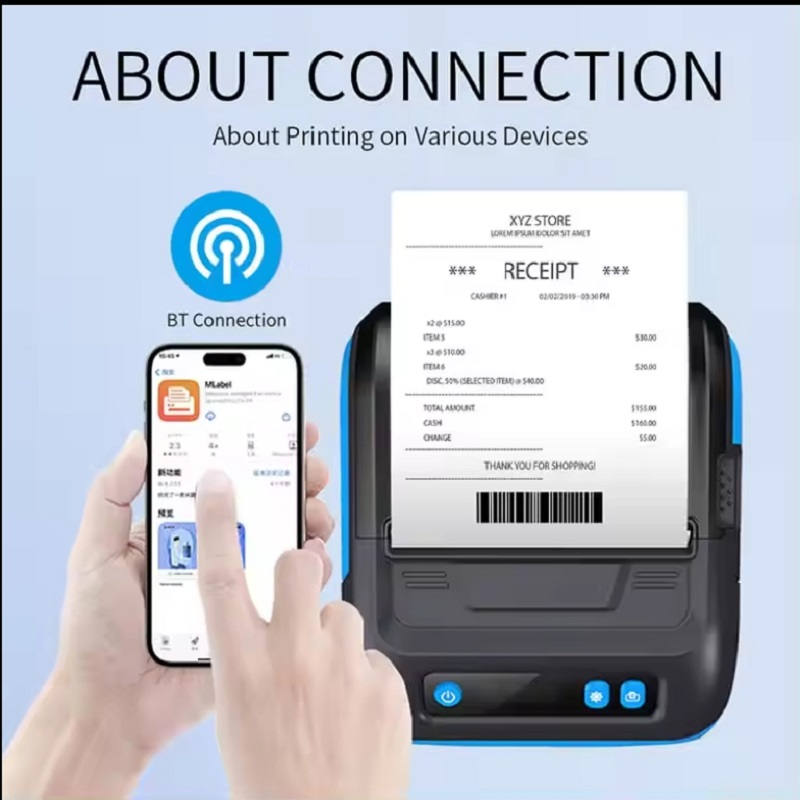
Mobile Phone Connection & Printing
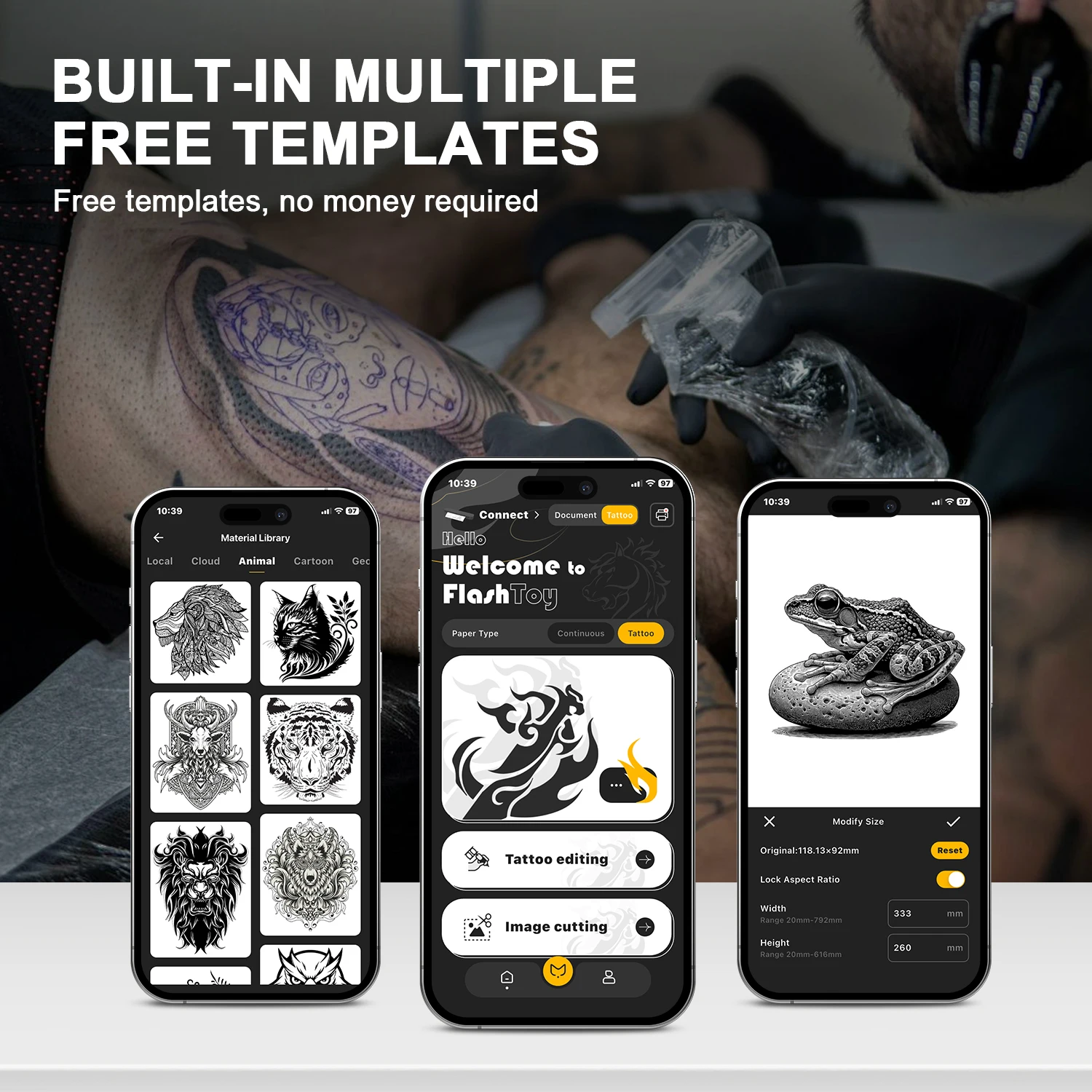
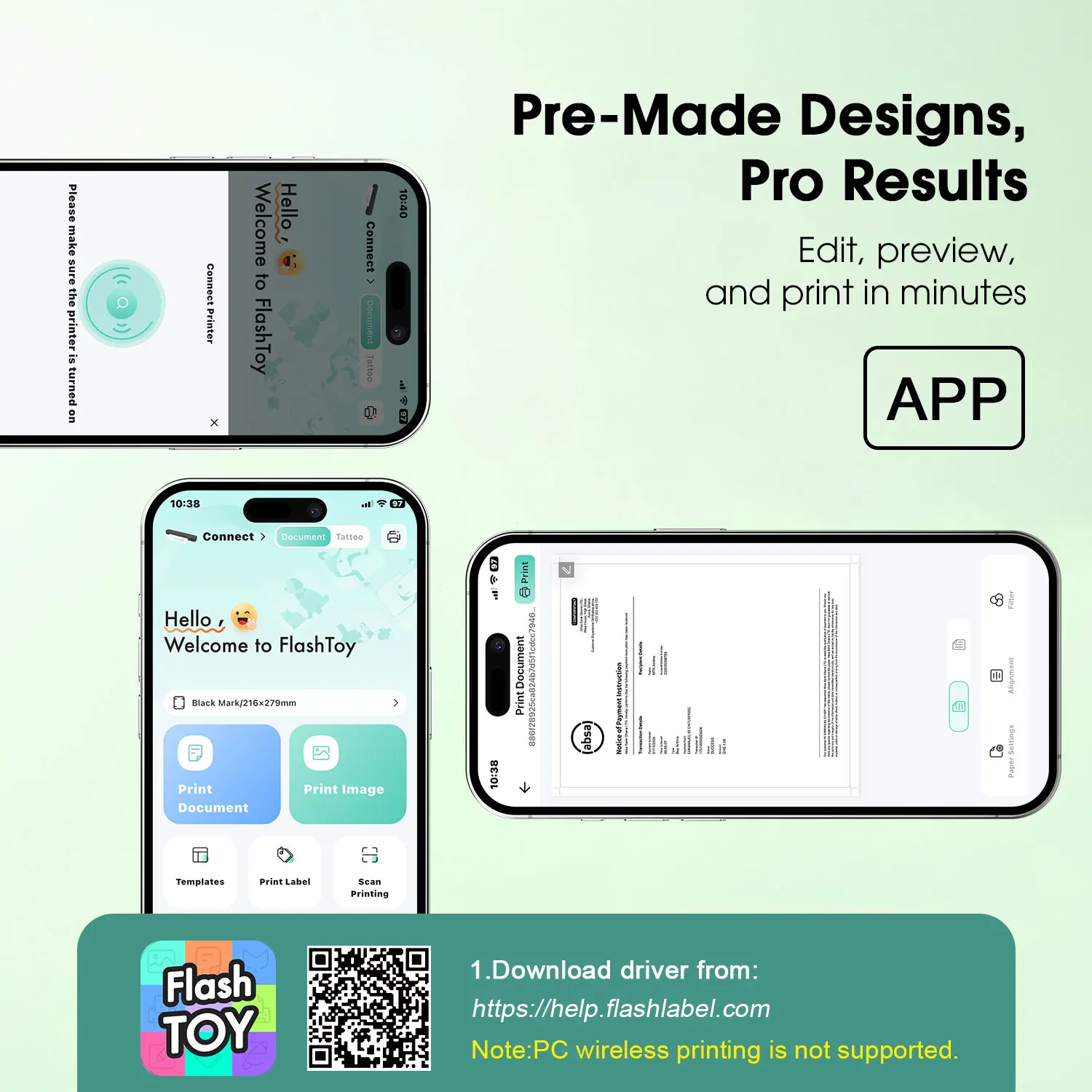
Download and install FlashToy APP on your mobile device.
Turn on the printer and activate phone Bluetooth.
Open the APP, search and pair the printer via Bluetooth.
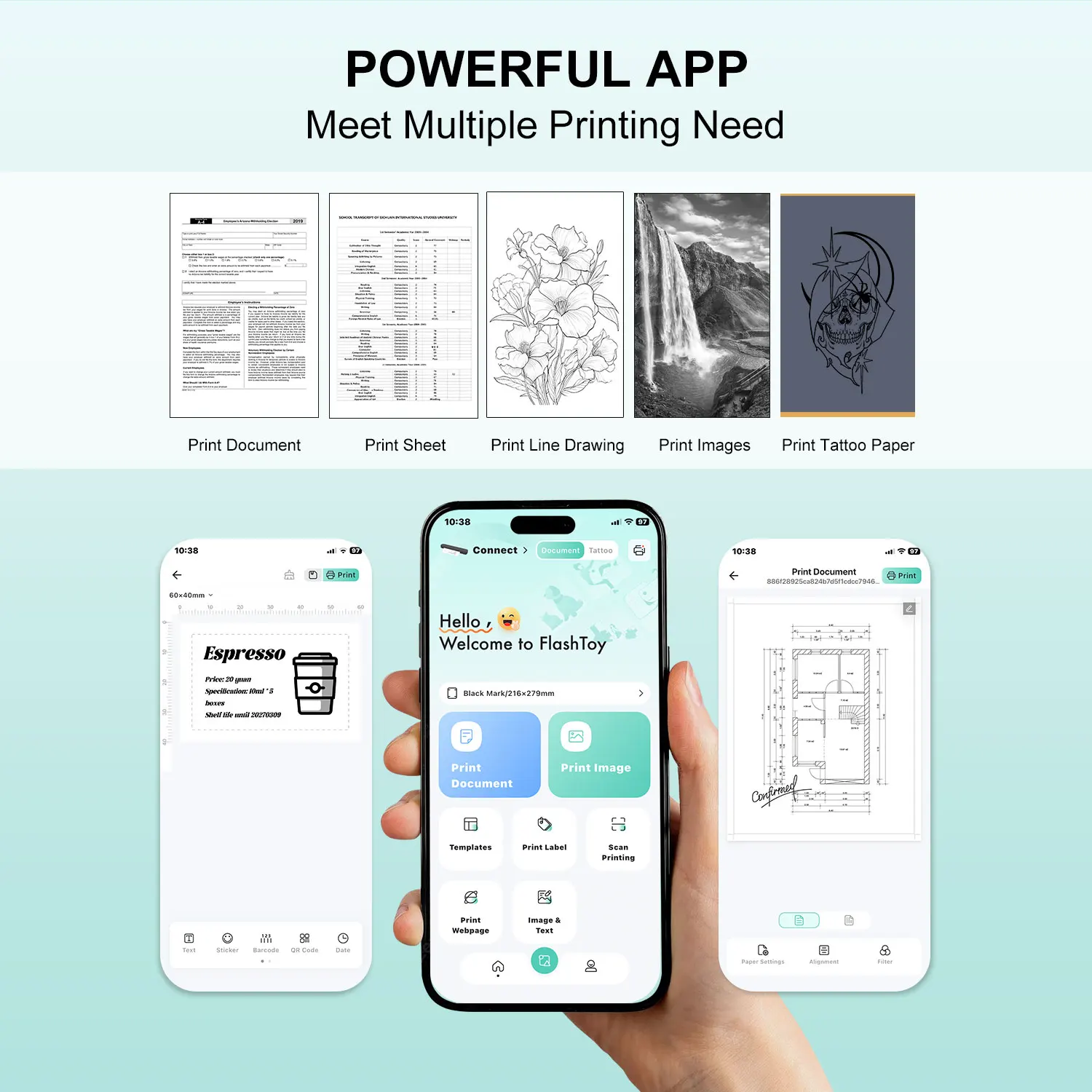
Edit or select patterns inside the APP, then start printing.
Computer Connection & Printing
Turn off computer anti-virus software before driver installation.
Connect the printer and computer with USB cable.
Install the matched driver for ST80 model. Restart the computer after installation.
Select this printer on your computer and start printing files.
Common Problems & Solutions
No content printed after printing. This is usually caused by unremoved protective film on transfer paper or incorrect paper placement. Please peel off the film and reload the paper correctly.
Blurry printing effect. It is caused by low-quality paper. Please replace with qualified high-quality transfer paper.
The printer shuts down automatically or prints intermittently. This means the battery is exhausted. Please charge the device in time.
Cannot turn on the printer or the button does not work. Use a small tool to press the reset hole at the bottom of the printer to restore normal use.
Failed Bluetooth connection. Keep your phone within 10 meters of the printer, and disconnect the printer from other paired devices first.
この製品のレビューはまだありません。
関連製品