









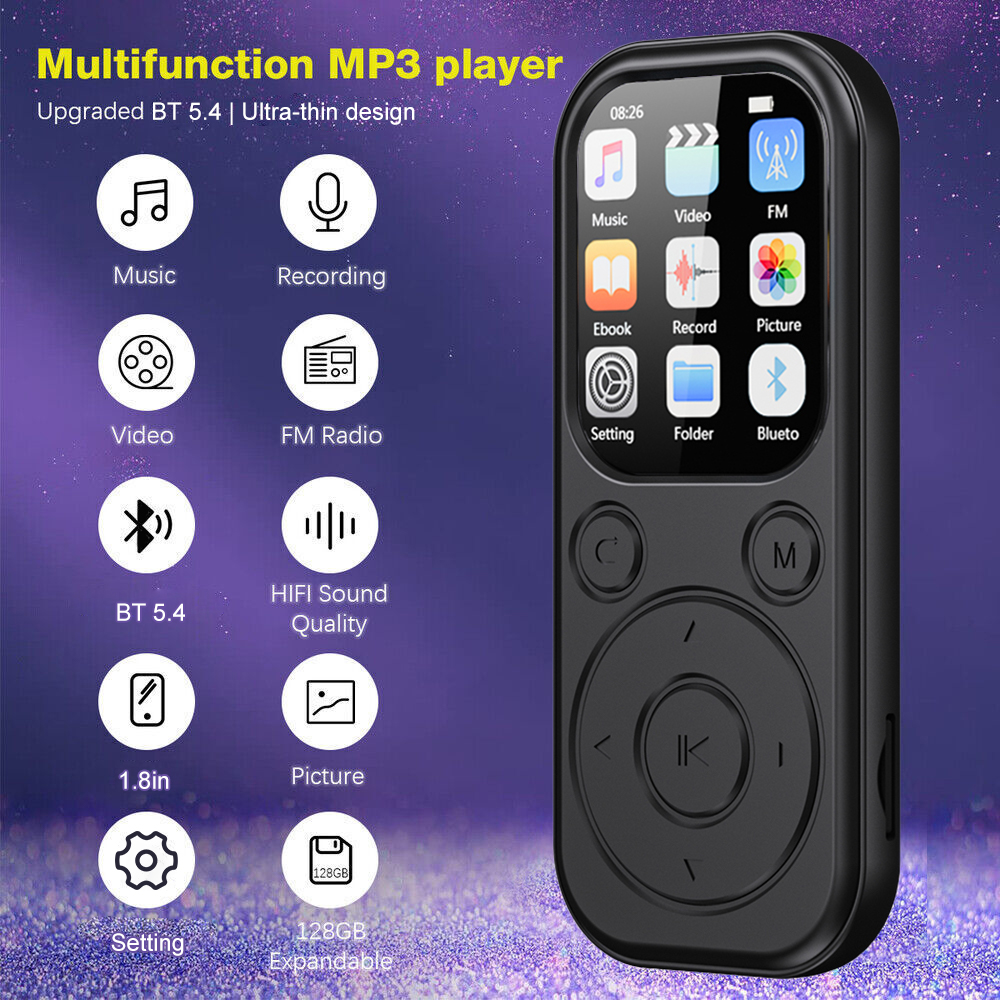
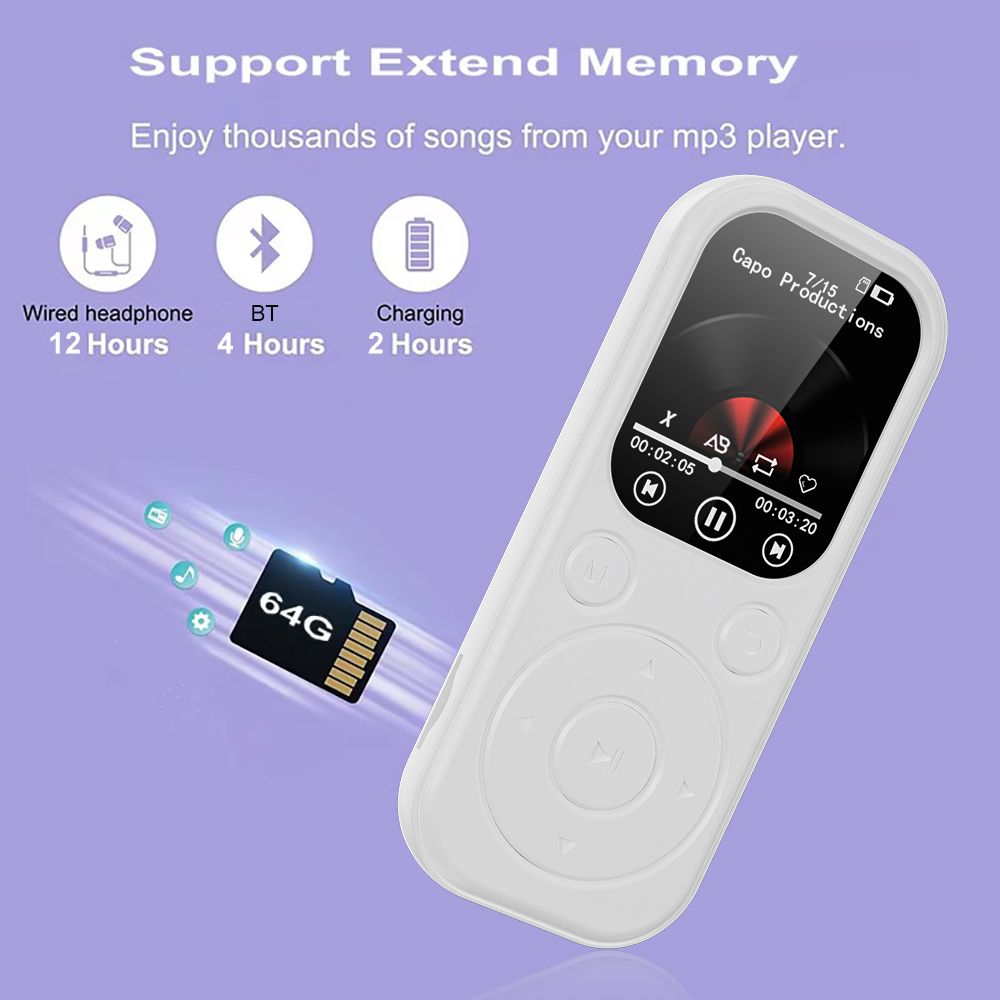
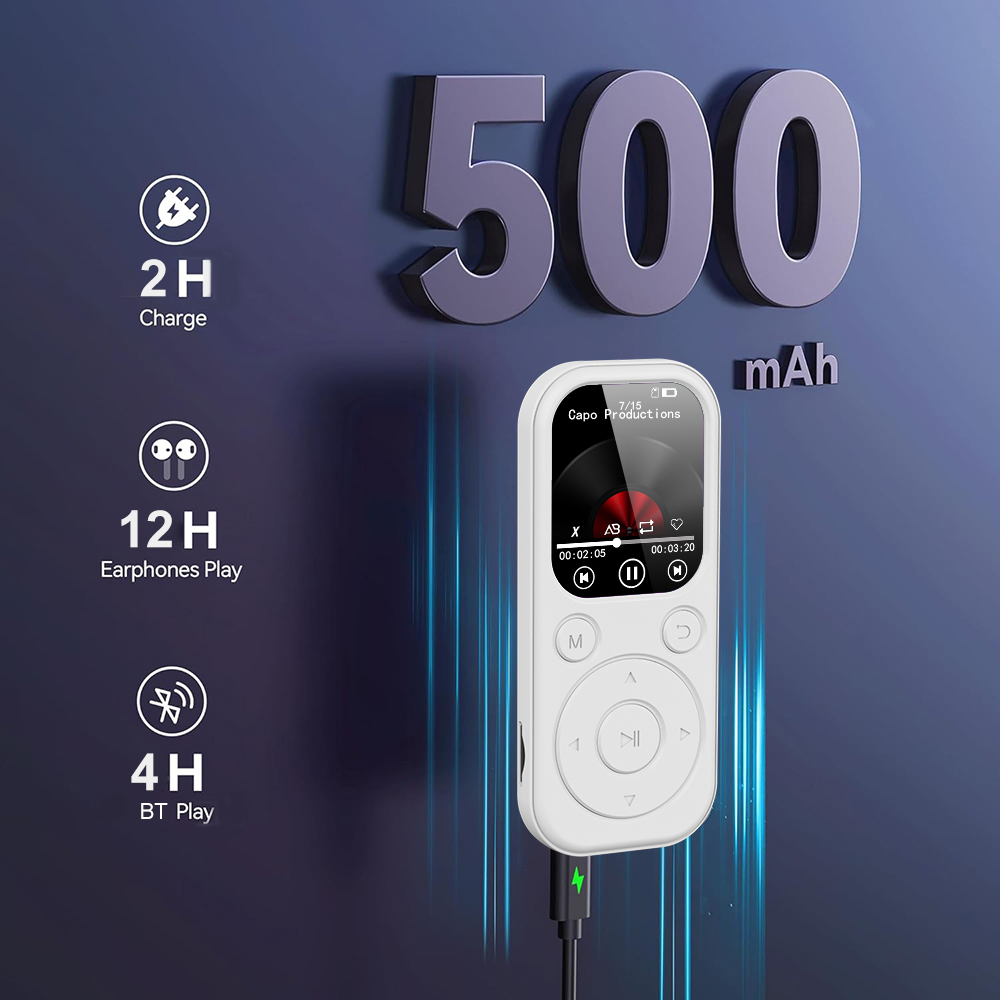
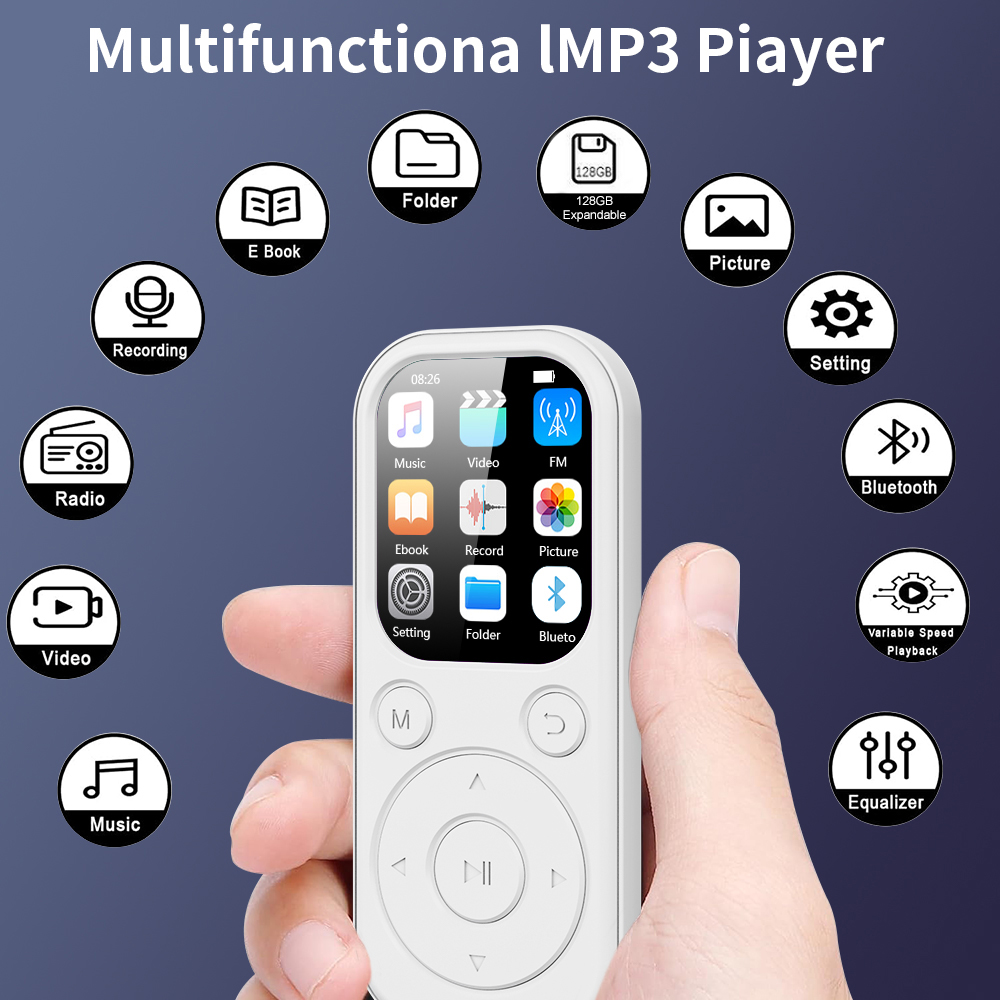
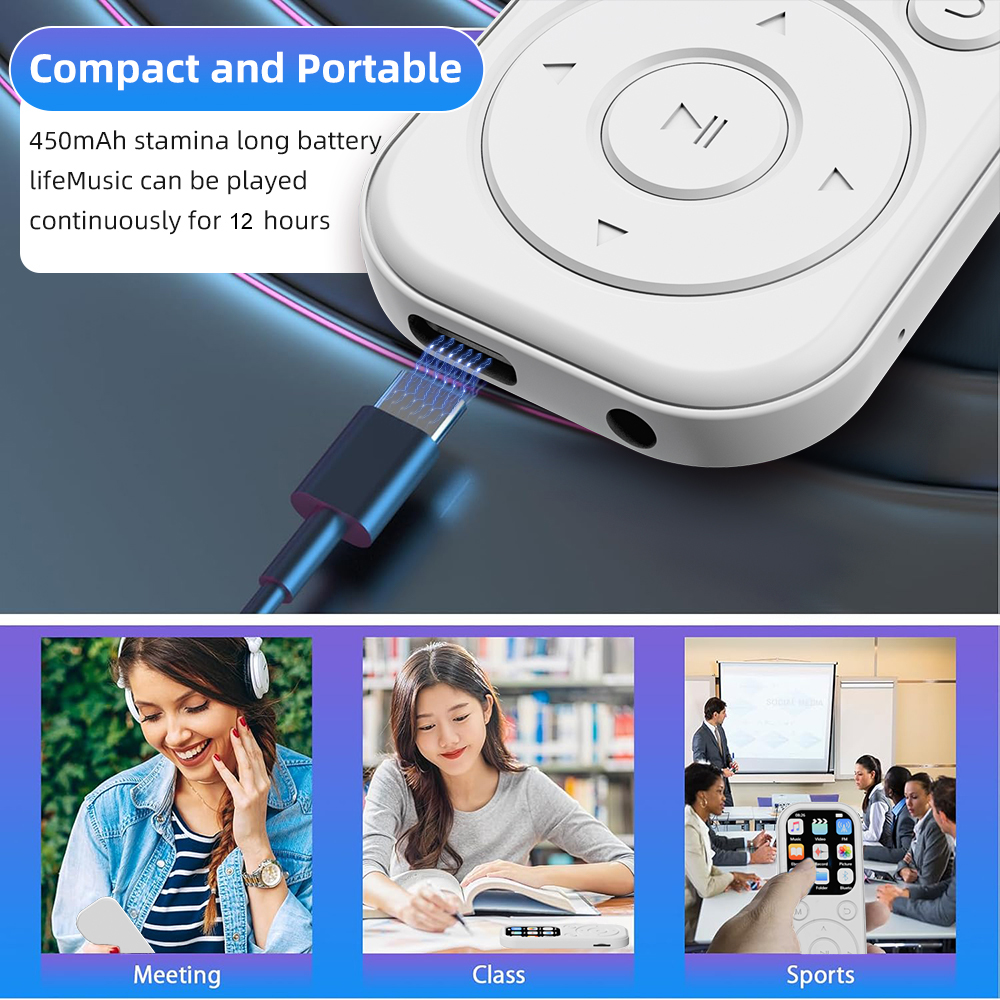
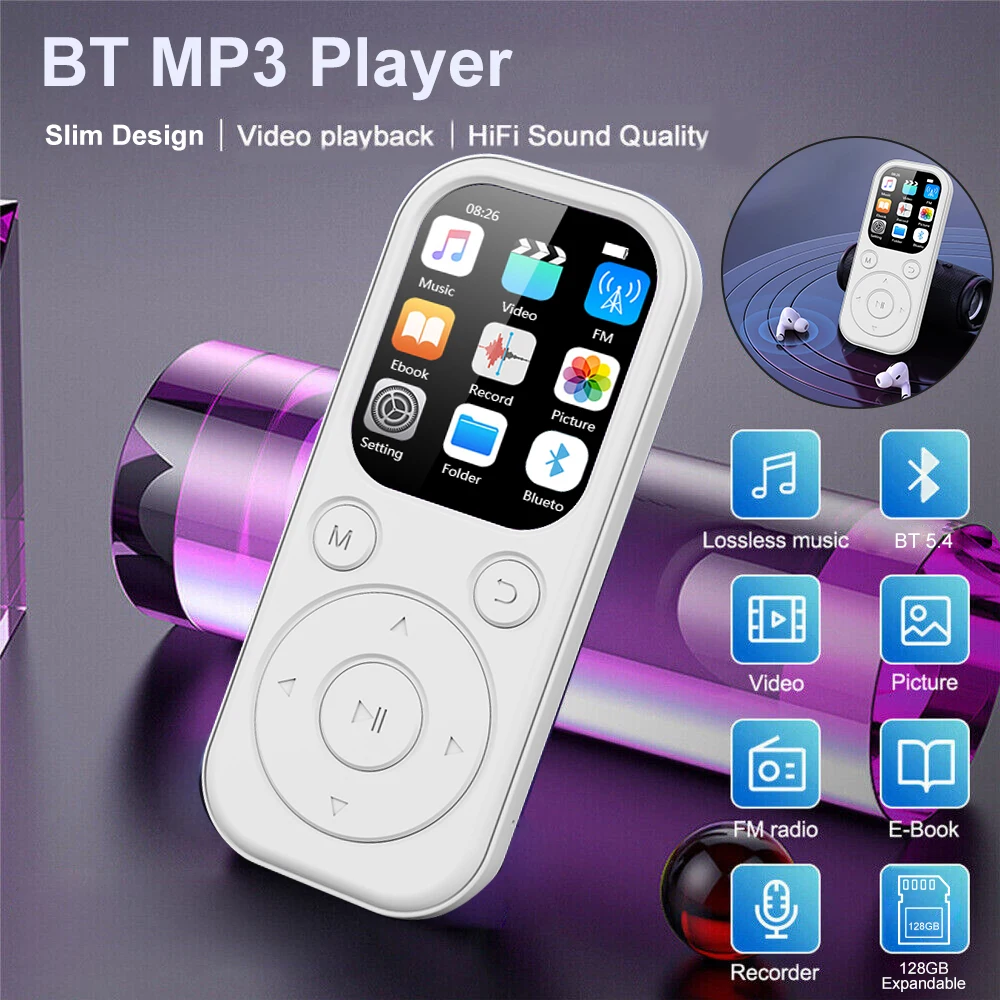
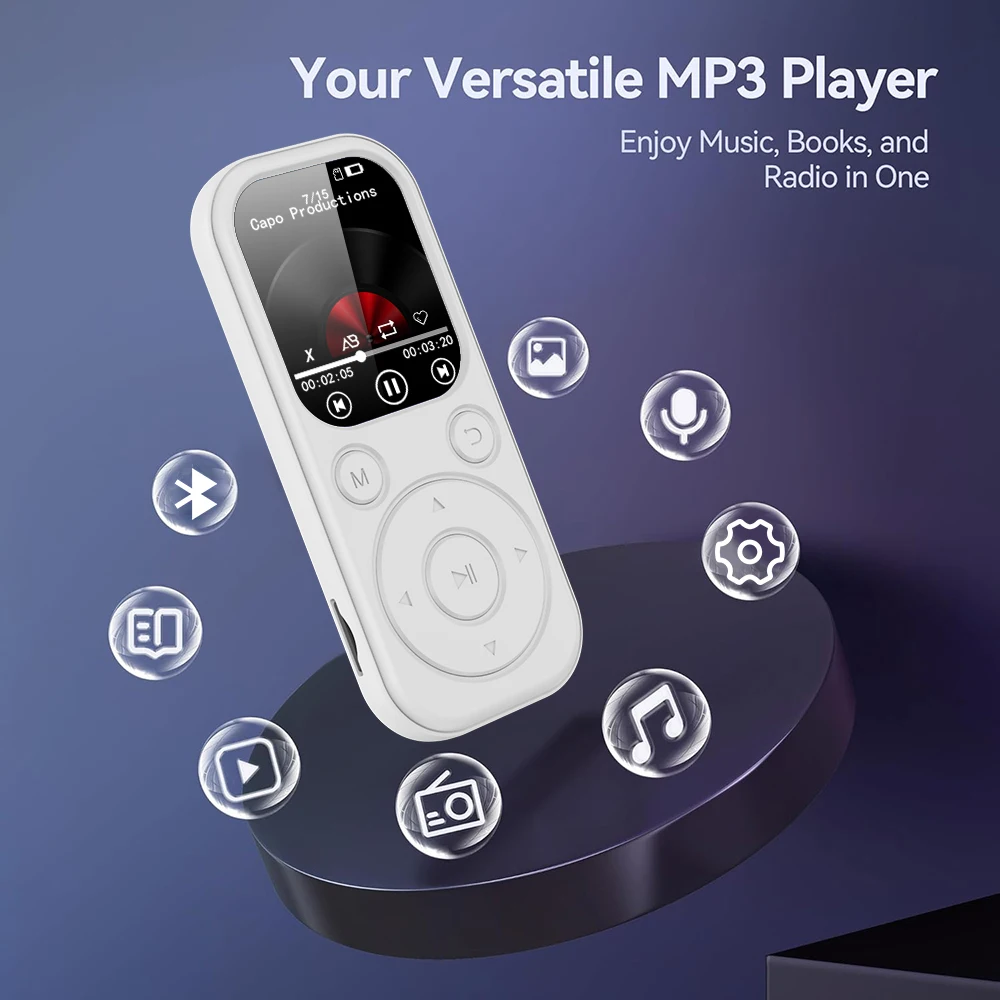
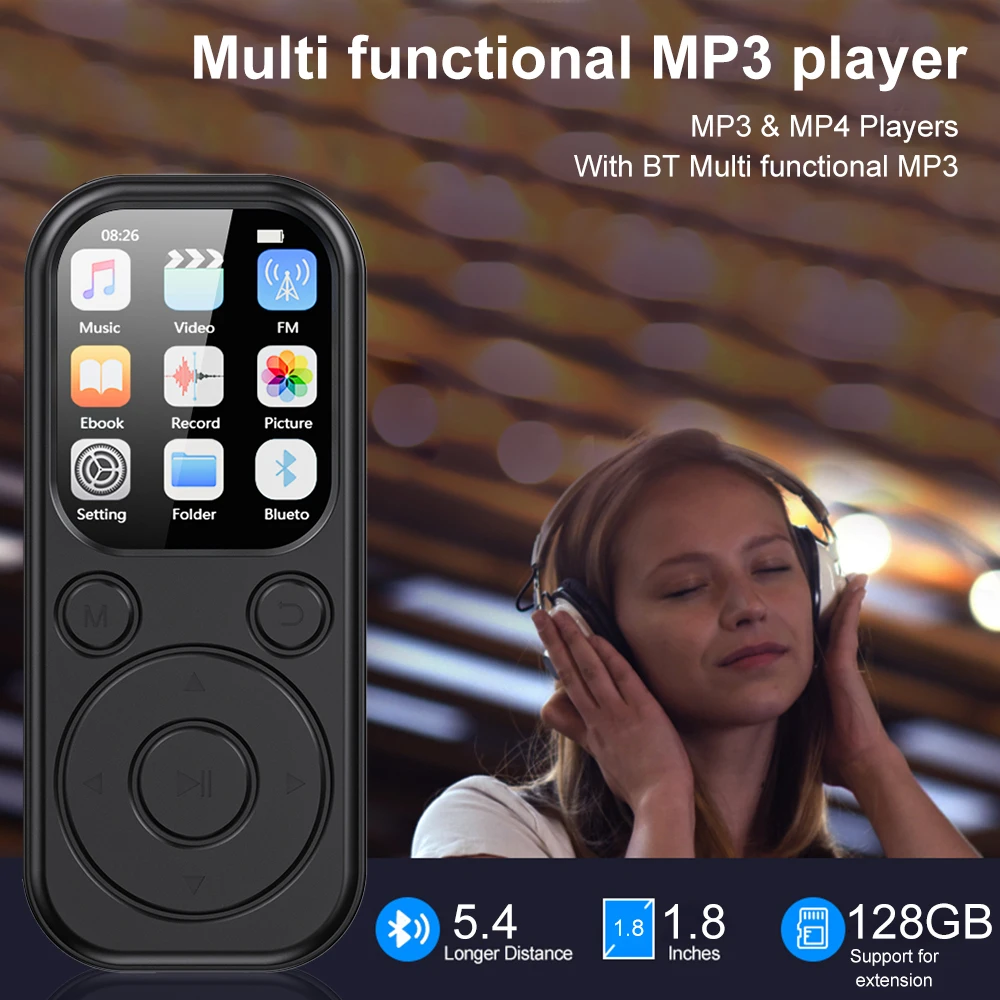
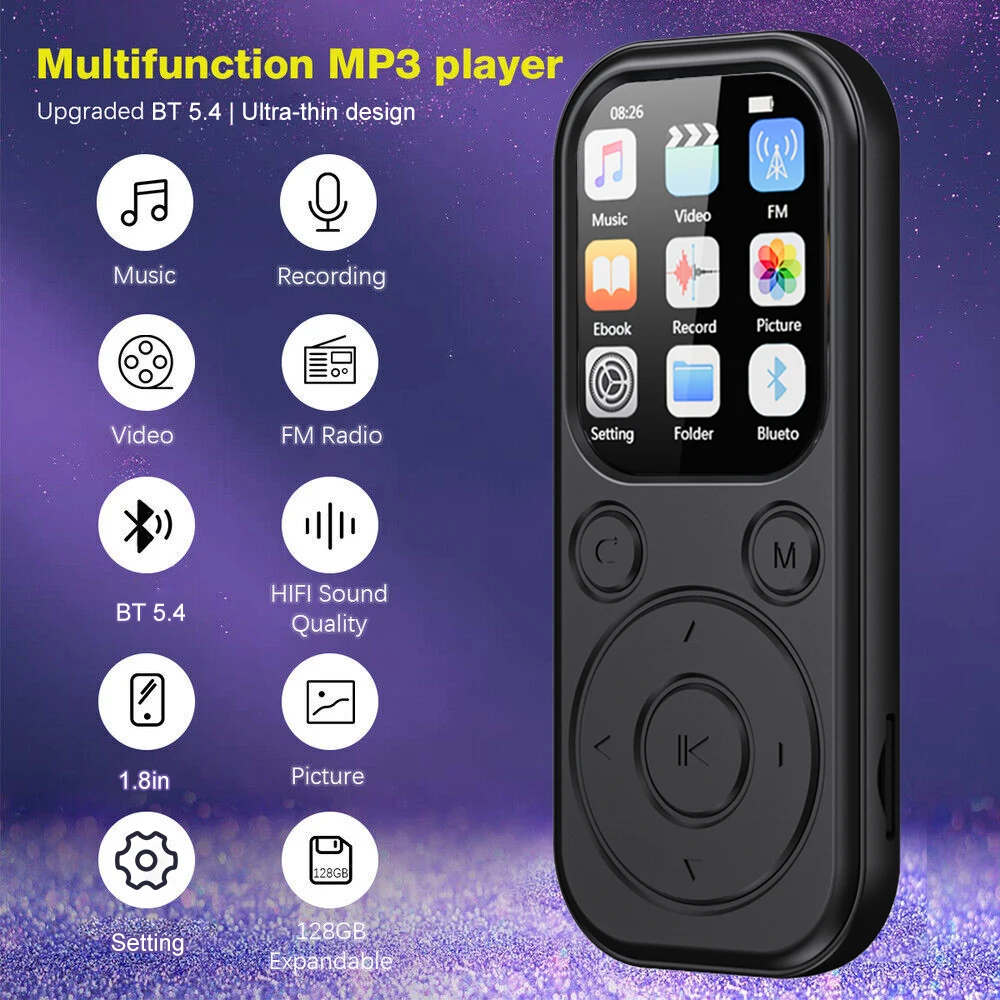
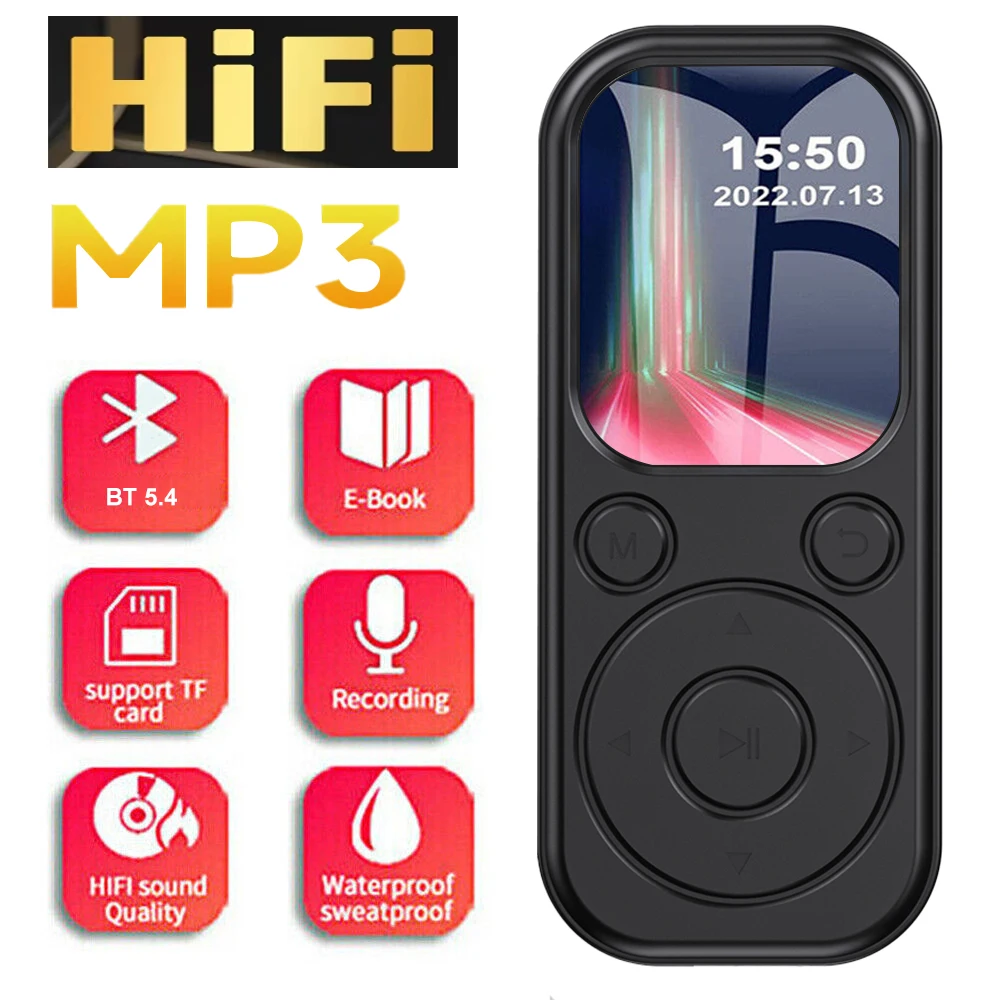
2025 New MP3 Bluetooth Player Type-C Interface 5.4 Bluetooth Version Expandable Memory Card Music Player FM Recording E-book
価格:
$21.04
/Pc
払い戻し:

シェア:
売れ筋商品


Product Operating Instruction
Version: V1.0
In order to ensure the best usage experience, please read this Operating Instruction carefully and keep it in a safe place for future reference.
Important Statement
1. Thank you for purchasing the digital music player. Before use of this product, please read the manual carefully. When you start to use the music player, we believe that you have read the manual.
2. The contents covered herein are subject to the latest information at the time of preparation. The products are subject to any change without prior notice.
3. In preparing the manual, we have striven to make the content correct and complete, but not guarantee that there are no errors or omissions in this manual. Our company will not be responsible for any possible error or omission in this manual.
4. We follow the strategies of continuous development. Hence, the company reserves the rights to amend and improve the product information described in this manual without prior notice.
5. In any circumstance, we bear no responsibilities to the data or income loss, or any special, incidental or consequential losses, whether the loss is caused by any reason.
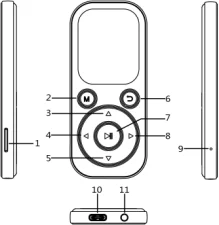 Product introduction
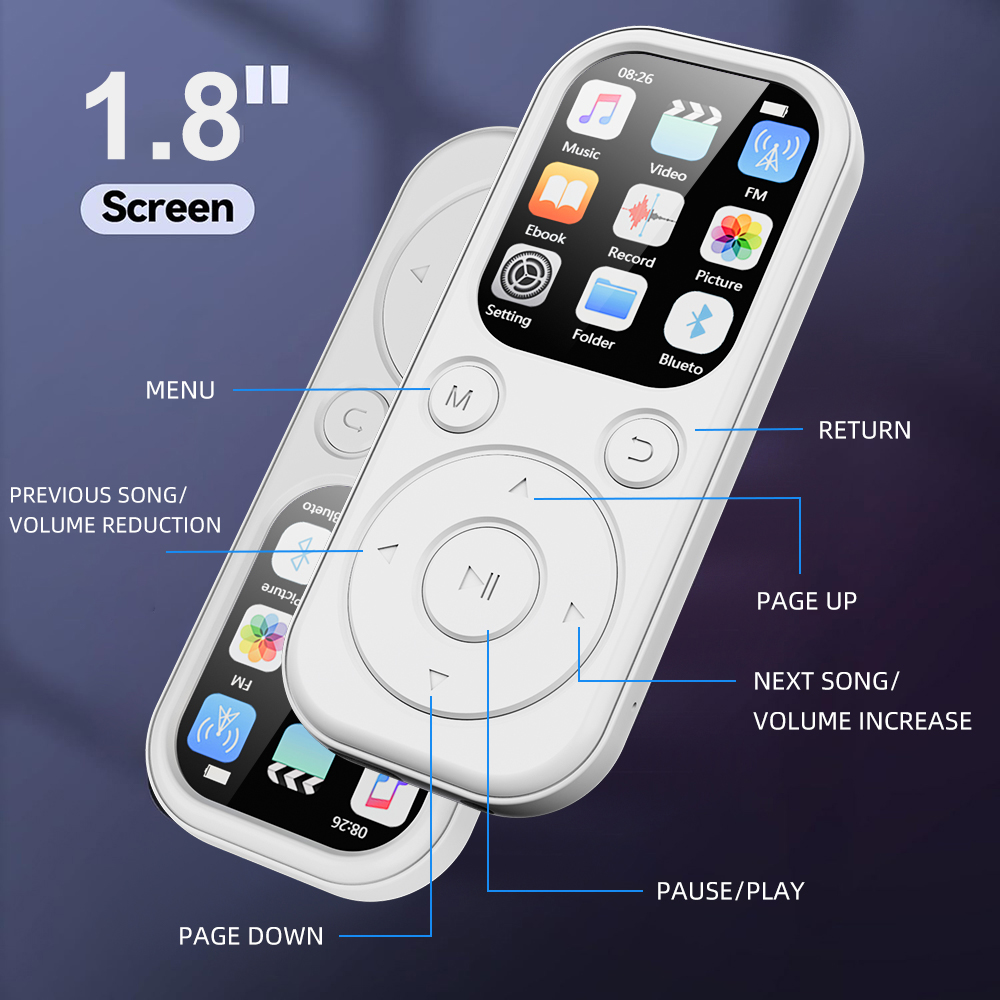
1.TF card slot
2.M menu key/repeat: Short press menu/long press to repeat
3. Upper key/volume +
4. Last song: Short press it to the previous song, long press to fast backward
5. Lower key/volume -
6. Back /:  Short press to return to the previous menu.
7. Play key /:  Long press On/Off, short press Play/Pause/OK
8. Next song/Fast forward: Short press it to the next song, long press to fast forward
9. Reset button: A needle can be inserted to reset the machine
10. USB charging port 11. Headphone port
Operating instructions
Power On/off: Long press the power button to power on or off.
Low power: When battery low power occurs, the player will display a tip screen, and then automatically shut down and enter the standby mode. Do not restart at this time, please charge in time.
It is recommended to choose the charger with a current specification of 500-1000mA.
PC connection: Connect the computer to charge this machine and operate the data of this machine at the same time. In the startup and shutdown state, use the USB cable provided with this machine to connect the PC and the player, open "My Computer" to see the new "Removable Disk" tip.
Inserting and pulling TF: Insert the TF card into the card slot, and the TF card is automatically locked by the card holder. When pulling out, push the TF card inward to the bottom then release, and the TF automatically pops out and can be taken out.
1. Try to choose the high-speed card of CLASS10 or higher to ensure the smooth music.
2. When the player is connected to the PC for data transmission, the transmission speed is limited. If you need a fast transmission of files, you can remove the TF card and use the card reader for data transmission.
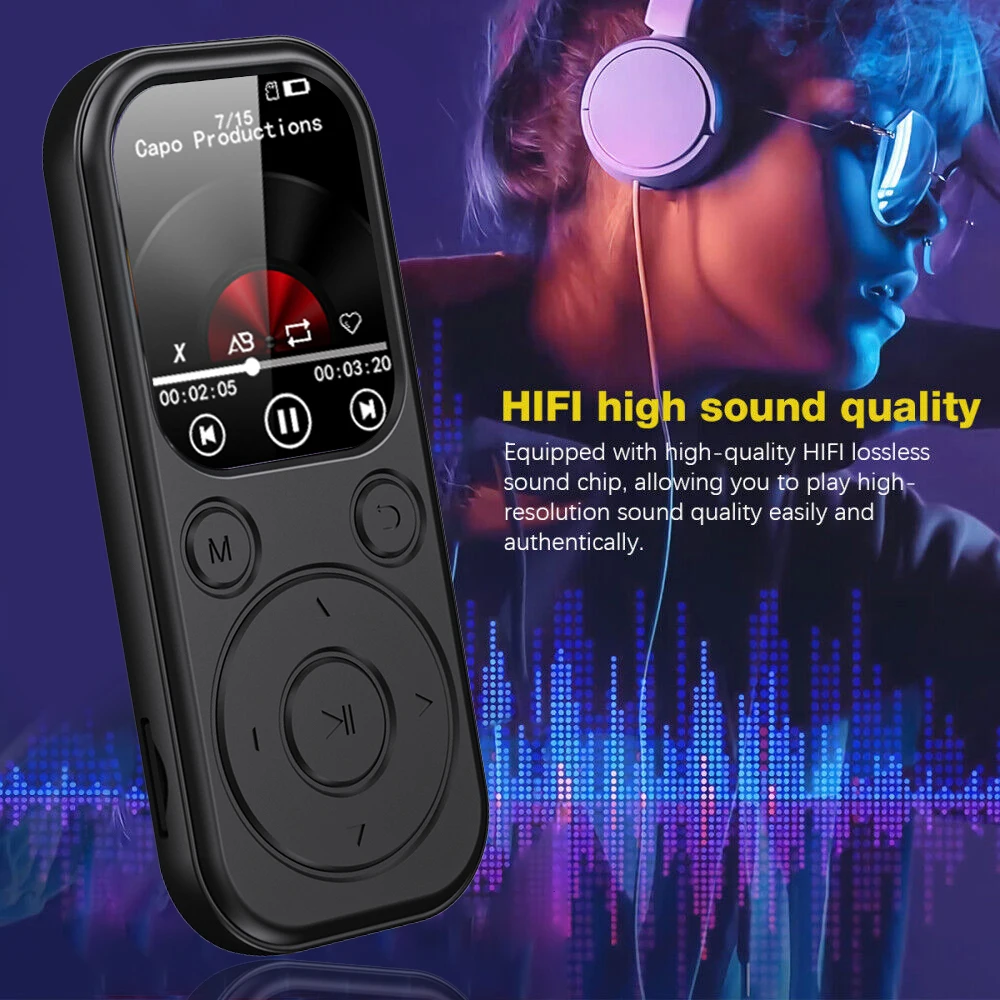
Music play: To play music on the machine, you need to copy the music to the TF card, and then insert the TF card into the machine to play.
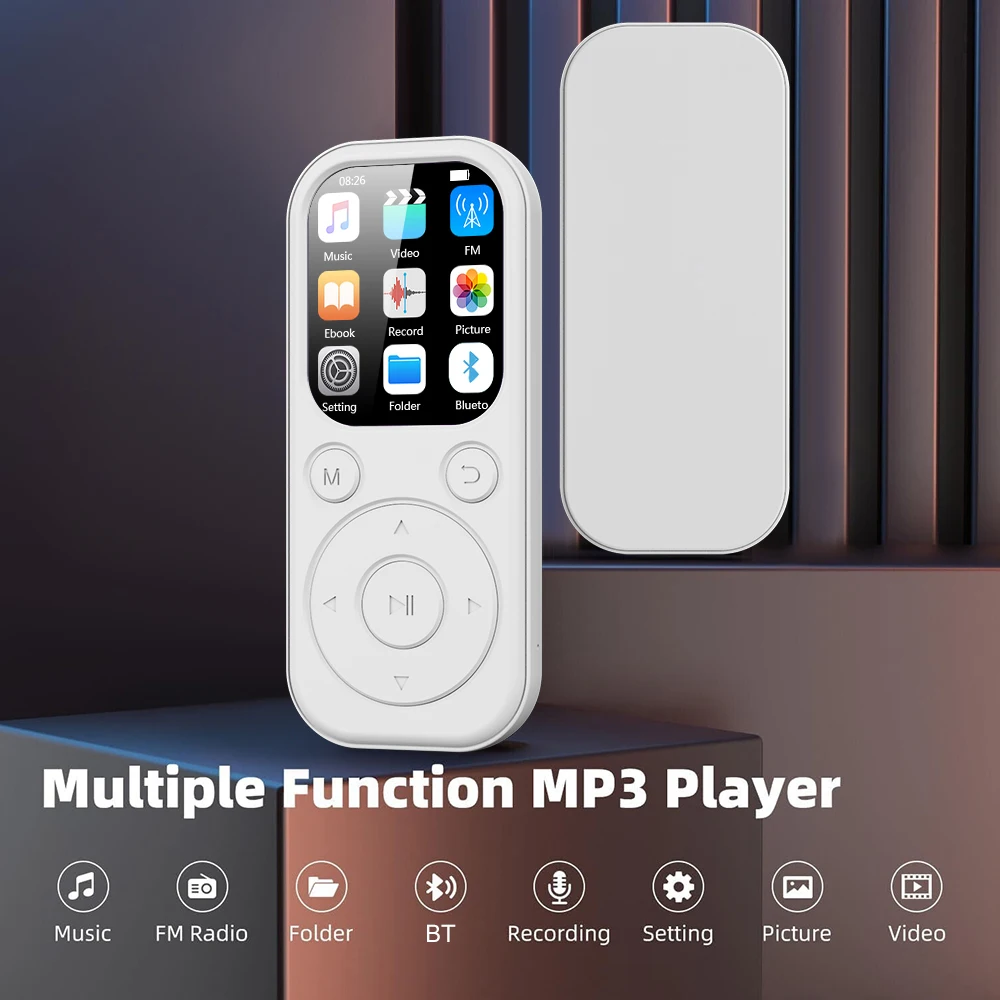
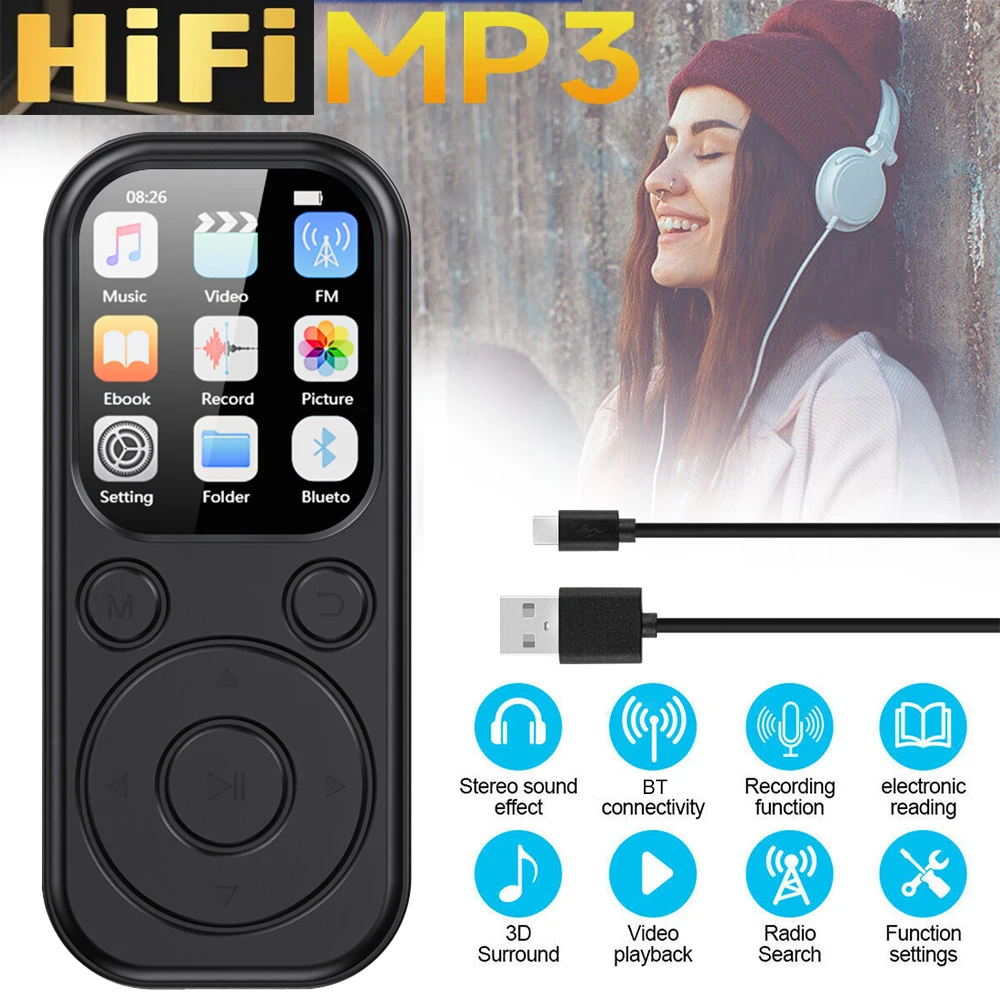
Select the music application on the main interface and press to enter the secondary screen.
All music: Display a list of supported music.
Last play: Support play at breakpoints, and resume playback from the last breakpoint.
Singer: Arrange the song list by artist.
Special issue: Arrange the song list by album.
My favorites: List of collected songs.
Update the playlist: The file can be played only after the list is updated.
Music play: On the secondary interface, select "All Songs" to enter the song list. Select a favorite song to play by pressing the button
Play/Pause: Press while playing to switch between music play and pause.
Previous song/Next song: When playing, short press ◀ to the previous song, short press ▶ to the next song, and long press ◀ or▶ for fast backward or forward.
Volume up/down: Short press ▶ to increase the volume while playing, and short press ▼ to decrease the volume.
Menu settings: When playing, short press M to enter the music setting interface
Return to homepage: Press this button to return to the main interface;
Variable speed play: The playback speed is adjustable double speed from -9 to 9.
Play mode: Available for all songs on repeat, random play, and one song on repeat.
Bookmark option: Available for recording up to 5 bookmarks.
Add to my favorites: Add the current song to my favorites list.
Delete from my favorites: Remove the current song from my favorites list.
EQ sound effect: Available for "normal, pop, rock, Jazz, classic, dance, country".
Reread: When playing music, long press  to set the starting point of rereading, at this time turns blue, long press "M" again to set the end point of rereading, then the icon "5" turns green and the file will be reread.
Delete a file: The current file could be deleted.
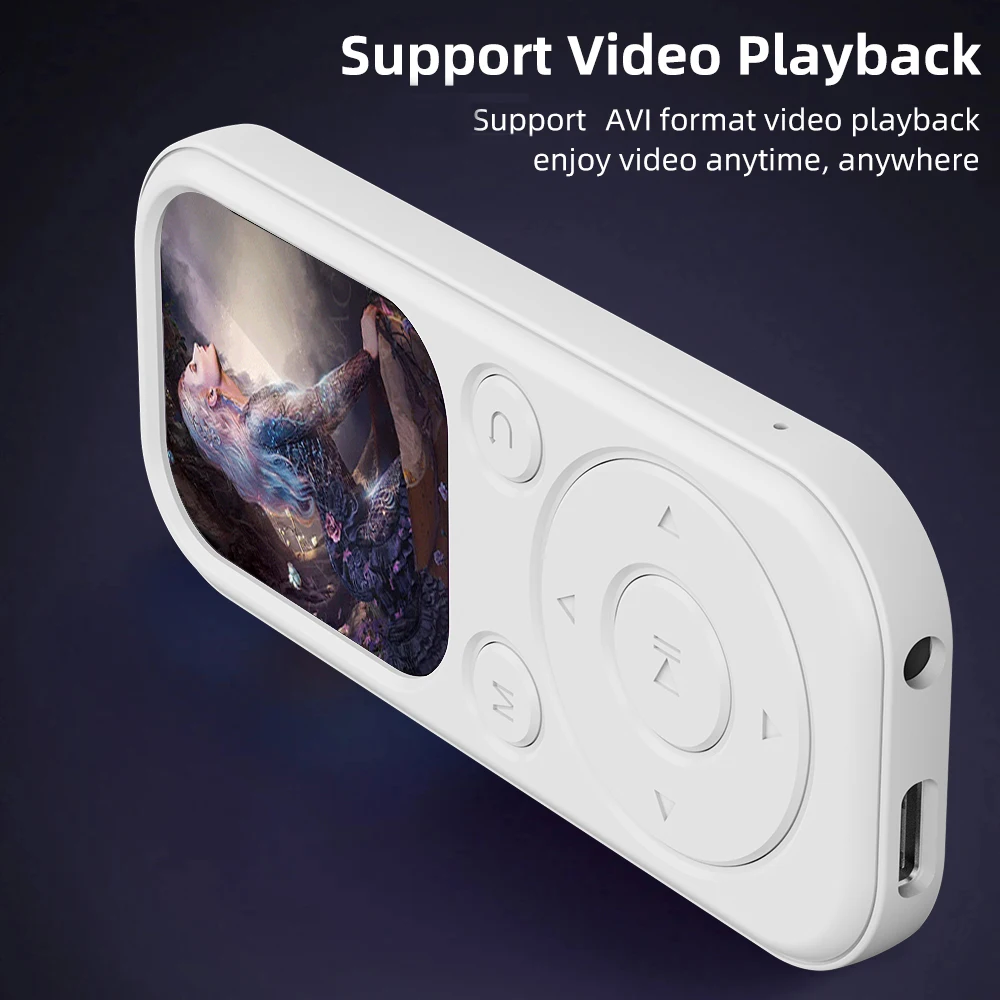
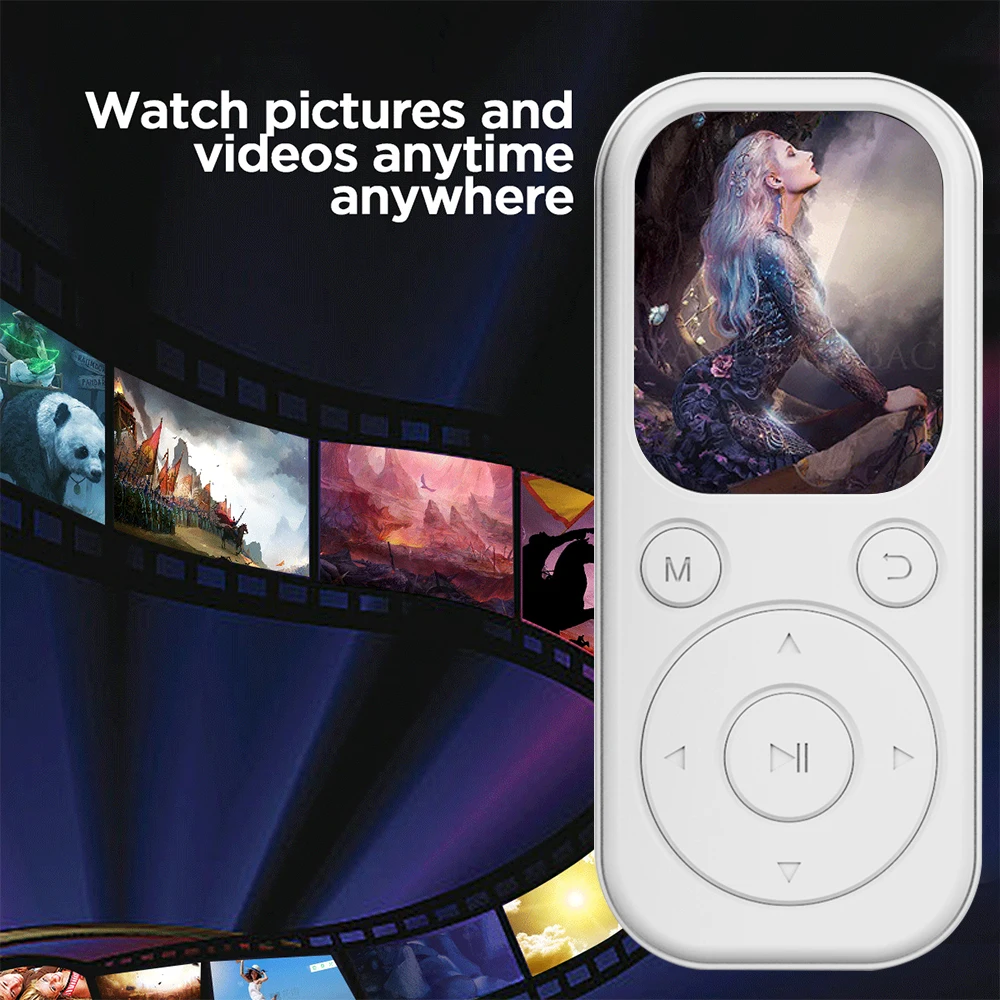
Video: On the main interface, press the arrow key to select the "Video" application, short press to enter the video list interface, short press to play the selected file. (Video format AVI resolution 240*288)
Video conversion: Install the SetupPxConverter(2.0.10).exe conversion tool. (Video tools only support Windows 10 and above)
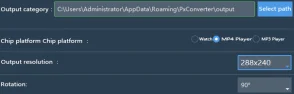
Open the conversion tool selection, select "MP4 player" for setting options Chip platform, and select 240*288 for "Output resolution", and select 90 for "Rotation". Confirm save when the setup is complete.
Then select Add New task, import the video you want to convert, and start converting the video.
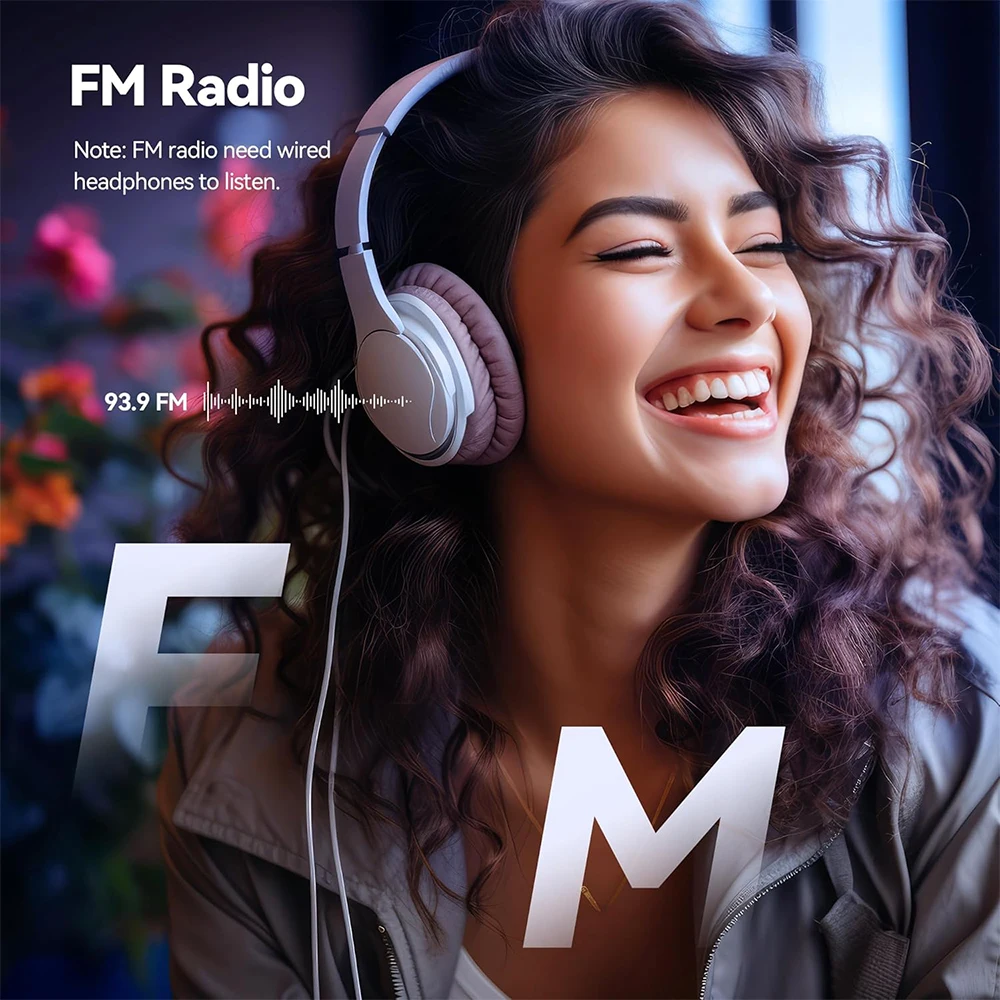
Radio: Plug in the headset, short press arrow key to select "Radio", short press it to enter the radio interface. Short press M key to enter the menu interface.
Preset radio station: Built-in 30 stations, select any option to save the currently playing station.
Automatic adjustment: Search for the station again after selecting it.
Radio station frequency band: Available for regular frequency, Japanese frequency, European frequency
The headset is designed as an FM antenna. Please insert the headset when listening to FM.
Novel: Select the "Novel" application and short press it to enter the file list screen. Select target text file, Short press to open the e-book.
Page down: Short press▶to turn the page down.
Page up: Short press ◀to turn the page up.
Menu settings: Short press M to enter the menu interface.
Auto play time setting: Available from 03-30 seconds.
Bookmark option: Add the current reading page to the bookmark.
Page selection: Enter the number of pages to jump to, select "Enter" to jump directly.
Background color: Available in 4 colors: pure white, gray-black, light gray, and paper yellow.
Chapter: Jumpable by chapter.
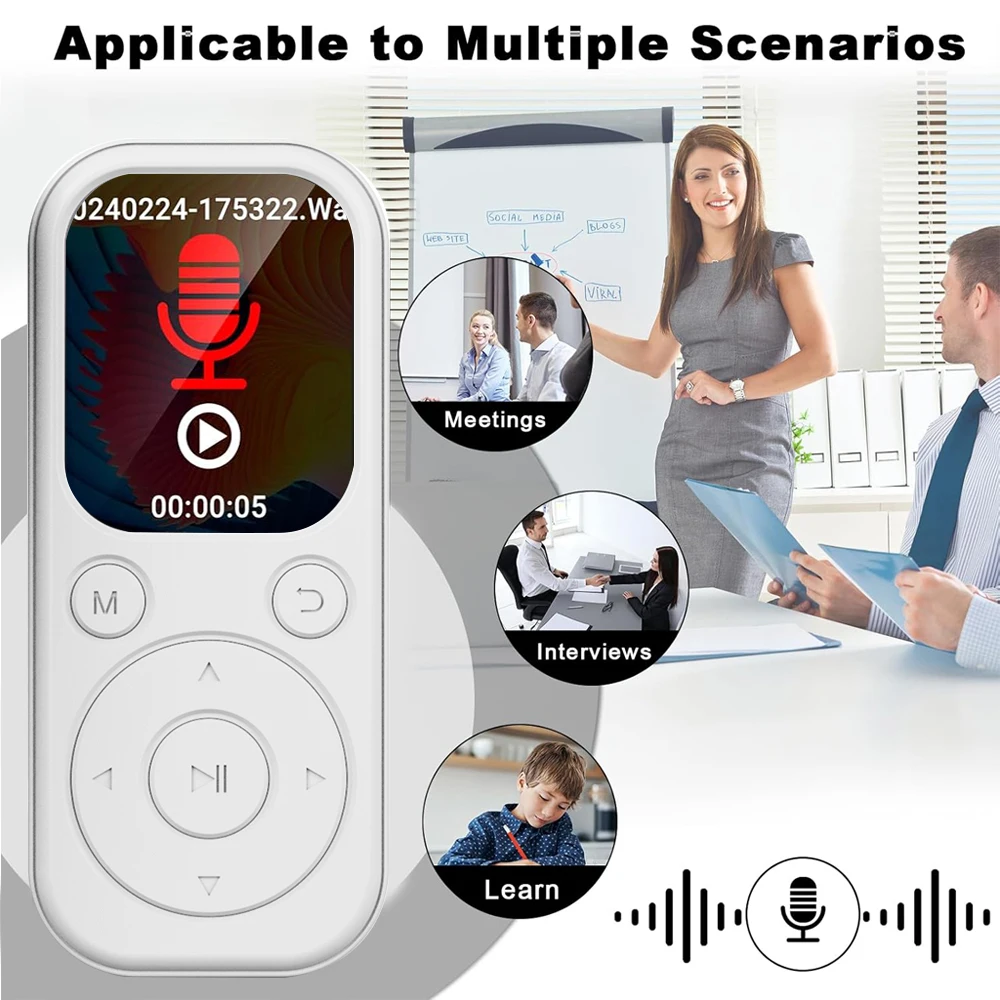
Sound recorder: Select "Recorder" on the main interface and short press it to enter the recording menu.
Start voice recording: Select start recording and short press it to start recording. During recording, short press it to pause the recording, short press to prompt you whether to save the current record.
Recording database: Short press to view the recording file.
High-quality recording: When turned on, subsequent recordings are high quality recordings, and when turned off they are normal quality recordings.
Voice control recording: Enable/disable voice control mode.
Noise reduction: Turn on or off the noise reduction mode.
Record for monitoring: Turn on or off the monitoring mode.
Pictures: BMP format images supported
Setting
Language: Supported languages include: Simplified Chinese, English and other six languages.
Display setting: Display brightness, backlight timer, screen saver, screen saver time could be set.
Timed power off: Shutdown time could be set.
Power off for power saving: Idle shutdown time could be set.
Date and time: Including the time setting, the date setting and the date format setting.
Device formatting: Clear all files in the disk (please back up important files).
Restore factory settings: Select whether to restore factory settings. Select "Yes" to restore the settings to their original values.
Update the playlist: When copying new audio/video, etc., you need to update the playlist, otherwise you may not be able to view or play these files.
About this device: View player information and disk information.
Folder: On the main interface, select "Folder" and short press it to view all files on the device. Short press M button and the system will display whether to delete files or not, select "Yes" to delete files.
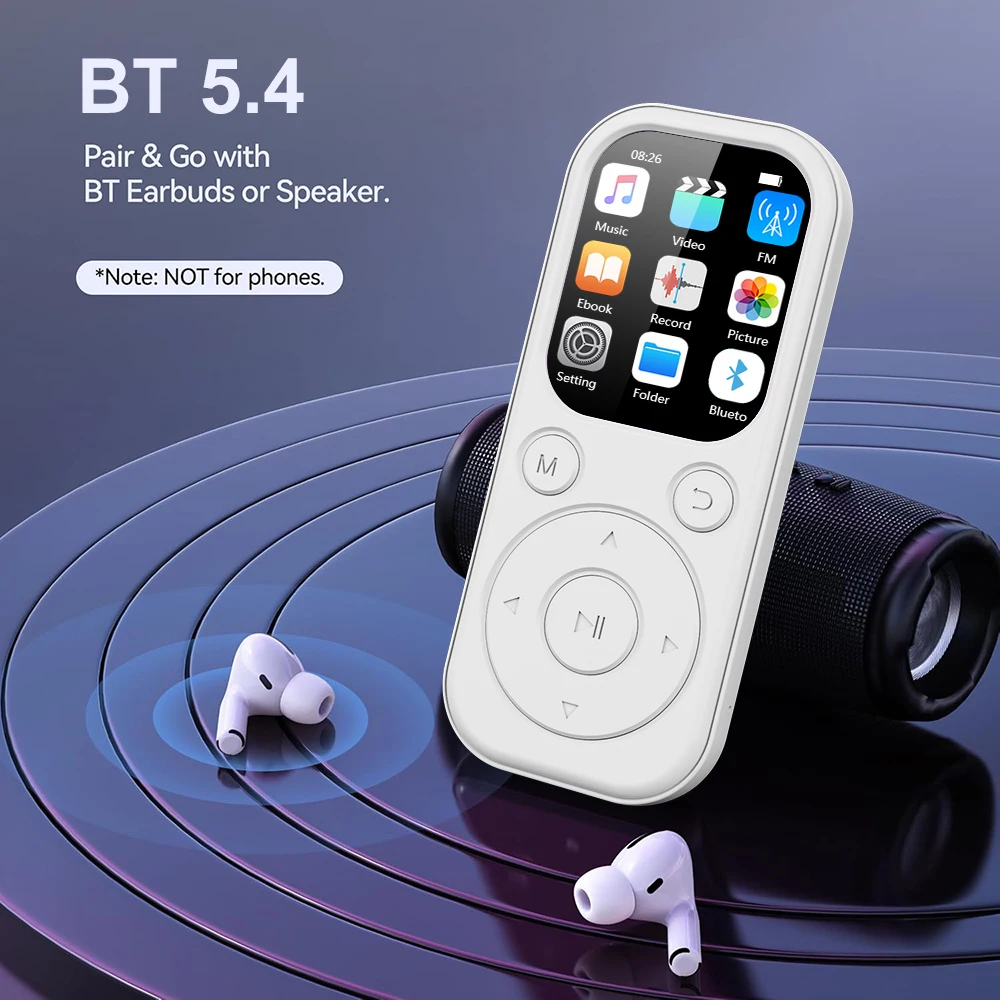
Bluetooth: First of all, turn on the Bluetooth switch and select "On", then search Bluetooth (such as Bluetooth headset, Bluetooth speaker, etc.) on the open available devices, click on the target device, the connection is displayed, indicating that the device is successfully connected.
Available devices: Search for Bluetooth devices (search required for the first use).
Paired device: View the paired devices, or cancel or disconnect the paired devices.
Setting: Short press Setting to enter the setting menu for setting selection.
Specifications table
Product type Digital player
Overall dimension 92MM*39.8MM*8MM
Software language Simplified Chinese, English and other six languages.
Product weight About 26g
Display screen 2.01-inch with resolution 240*296
Video Resolution 240*288 format AVI
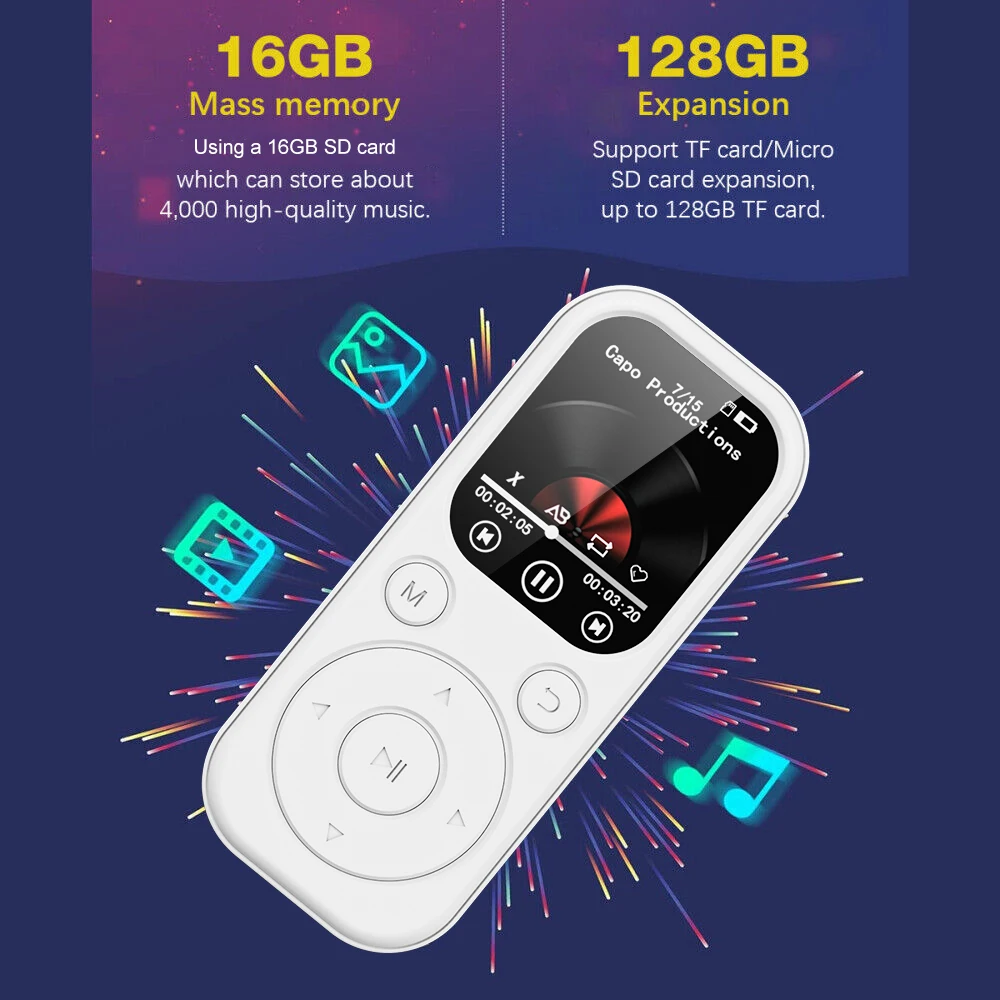
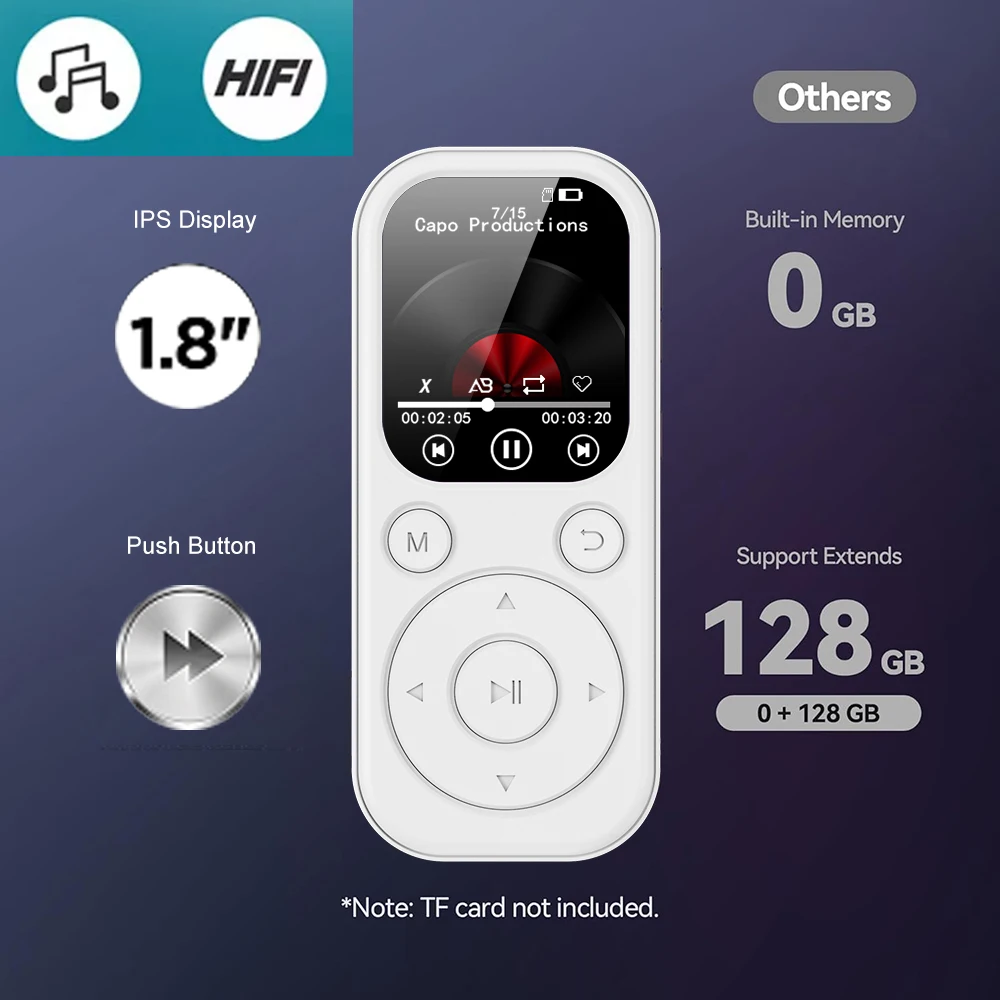
TF card extension ≤128G
E-book format TXT
Charging time About 2 hours
Supportedoperatingsystems:AboveWindowsXP/vista/Windows8/Mac os10.12.
* The audio indicators shown in this table are for reference only. There will be slight deviation in audio parameters due to the small difference of electronic components of the product. Please take the material machine as the standard.

この製品のレビューはまだありません。
関連製品